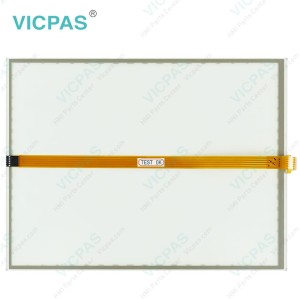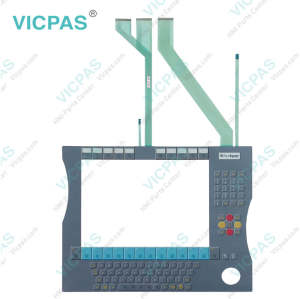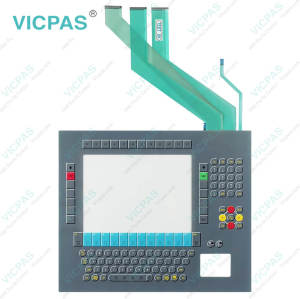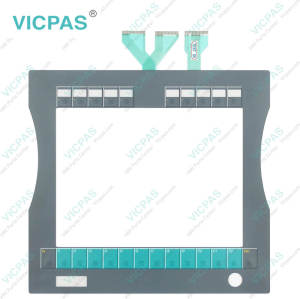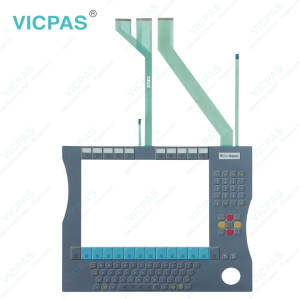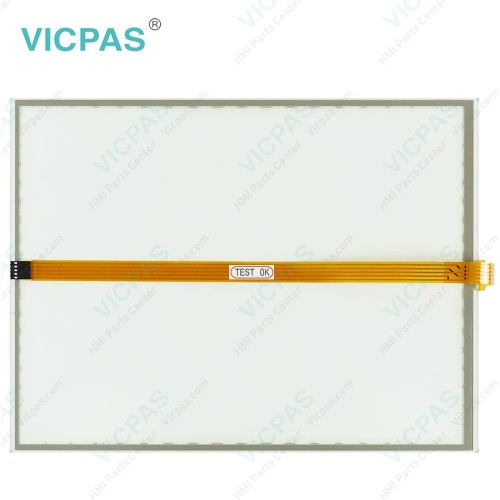
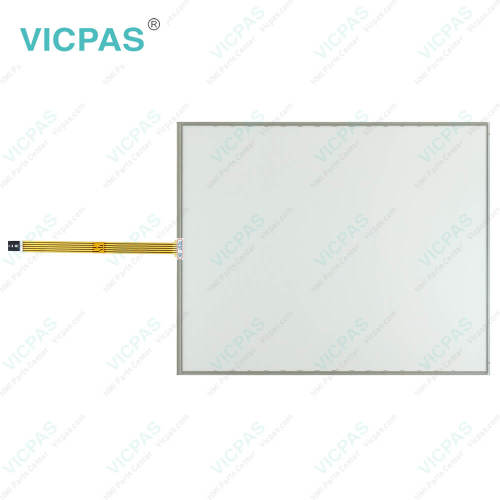
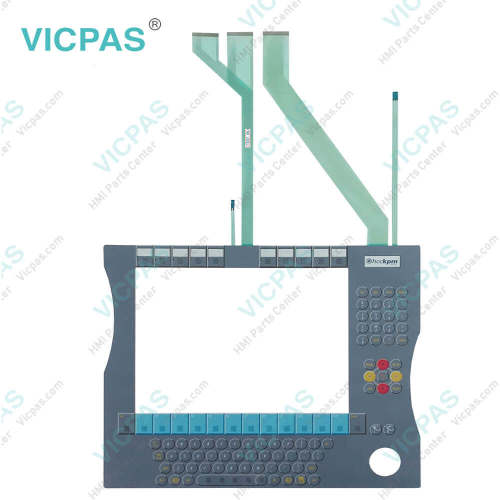
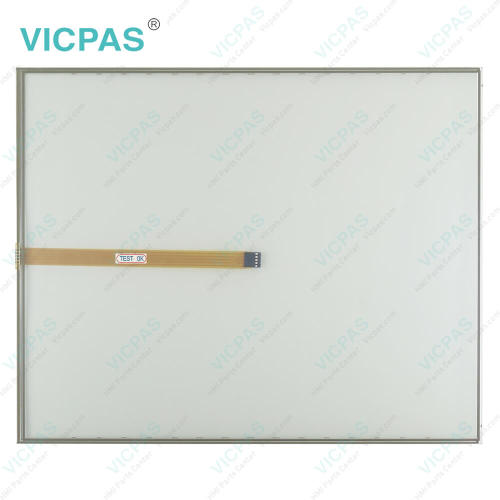
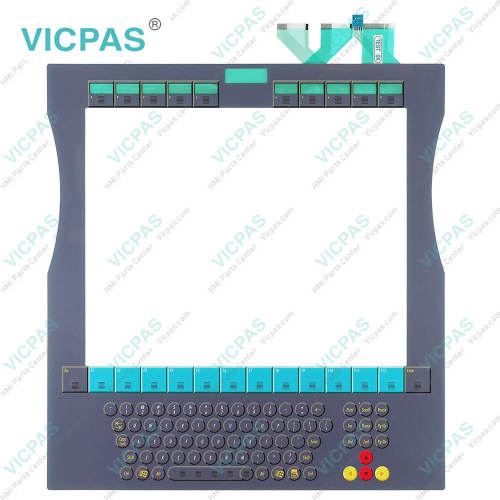
CP7811-0000-0010 CP7811-0001-0010 CP7821-0000-0010 CP7821-0001-0010 Touch Panel Membrane Keypad
- Model
- CP7811-0000-0010 CP7811-0001-0010 CP7821-0000-0010 CP7821-0001-0010
Item specifics
- Product Line
- CP78XX CP79XX
- LCD Type
- TFT
- Shipping Time
- 3-5 Days
- Supply Parts
- Switch Membrane Touch Screen Display
- Environment
- Free From Corrosive Gases
- Size
- 12''
Review
Description
Beckhoff CP7811-0000-0010 CP7811-0001-0010 CP7821-0000-0010 CP7821-0001-0010 Keypad Membrane Touch Digitizer Glass Replacement
Order each part separately is available
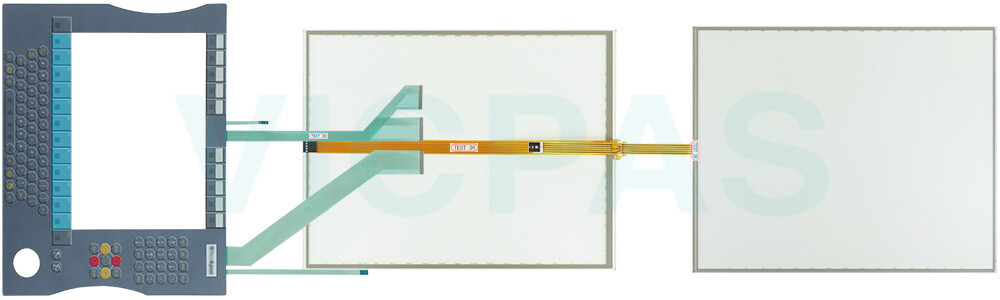
You can clean Beckhoff HMI Keyboard CP7811-0000-0010 CP7811-0001-0010 CP7821-0000-0010 CP7821-0001-0010 HMI Touch Glass Switch Membrane of the device during operation. In order to avoid inadvertent touch entries when doing this, you must first set the device to "Cleaning Mode" with the help of the Beckhoff Display Control Tool. Also make sure that you not only clean the display area, but also the edge of CP7811-0000-0010 CP7811-0001-0010 CP7821-0000-0010 CP7821-0001-0010 Terminal Keypad Touch Screen Monitor. Impurities in the edge area or liquids that do not run down the glass pane as drops but as a long short-circuit bridge create an electrically conductive connection between Beckhoff HMI CP7811-0000-0010 CP7811-0001-0010 CP7821-0000-0010 CP7821-0001-0010 Keypad Membrane Touchscreen area and the metal housing of the device. This unintentionally triggers a touch event at the edge of the touch screen, which can lead to incorrect operation.
The Beckhoff Display Control Tool does not start automatically when the device starts up. Proceed as follows to activate the "Cleaning Mode" of Beckhoff Touch Screen CP7811-0000-0010 CP7811-0001-0010 CP7821-0000-0010 CP7821-0001-0010 Touch Digitizer Glass Membrane Switch:
1. Click the Beckhoff Display Control Tool icon to start it. When the tool is started, a small sun symbol appears in the taskbar.
2. Right-click the sun symbol.
3. Select the "Cleaning Mode". "Cleaning Mode" is activated. You can now clean the front panel.
4. You can set the duration for which the device should remain in "Cleaning Mode". The period can be set between 5 and 120 seconds. Right-click the sun symbol again and click "Options". Now select the appropriate duration.
Specifications:
The table below describes the parameters of Beckhoff CP7811-0000-0010 CP7811-0001-0010 CP7821-0000-0010 CP7821-0001-0010 Operator Keyboard Touch Screen Glass.
| Brand: | Vicpas |
| Light Transmission: | Above 75% |
| Product Line: | CP78XX CP79XX |
| Cooling Method: | Natural Air Cooling |
| Operating Temperature: | 0 °C ... +55 °C |
| Environment: | Free From Corrosive Gases |
| Warranty: | 365 Days |
| Storage Temperature: | -25 °C ... +65 °C |
| Relative Humidity: | 95% |
| LCD Type: | TFT |
Related Beckhoff Part No. :
| Beckhoff HMI | Description | Inventory status |
| CP7802-1067-0010 | Beckhoff CP78XX Touch Screen Tablet Replacement | In Stock |
| CP7802-1327-0010 | Beckhoff CP78XX LCD Display Touch Screen Film Repair | Available Now |
| CP7803-0000-0011 | Beckhoff CP78XX Touch Screen Monitor Replacement | In Stock |
| CP7803-0001-0011 | Beckhoff CP78XX Touch Digitizer Glass Repair | Available Now |
| CP7803-0020-0011 | Beckhoff CP78XX Touch Membrane Replacement |
In Stock |
| CP7803-0021-0011 | Beckhoff CP78XX Touch Screen Display Repair | Available Now |
| CP7803-1040-0011 | Beckhoff CP78XX HMI Touch Glass Replacement | In Stock |
| CP7809-0000-0000 | Beckhoff CP78XX Touch Screen Panel Repair | Available Now |
| CP7809-0001-0000 | Beckhoff CP78XX Touch Screen Glass Replacement | In Stock |
| CP7811-0000-0010 | Beckhoff CP78XX Membrane Keyboard Touch Screen Film Repair | Available Now |
| CP7811-0001-0010 | Beckhoff CP78XX Touch Screen Monitor Terminal Keypad Replacement | In Stock |
| CP7812-0000-0010 | Beckhoff CP78XX Operator Panel Keypad HMI Touch Glass Repair | Available Now |
| CP7821-0000-0010 | Beckhoff CP78XX Touch Screen Panel Membrane Switch Replacement | In Stock |
| CP7821-0001-0010 | Beckhoff CP78XX Membrane Keypad Touch Screen Display Repair | Available Now |
| CP7909-0000-0000 | Beckhoff CP79XX Touch Digitizer Glass Replacement | In Stock |
| CP7909-0001-0000 | Beckhoff CP79XX Touch Screen Panel Repair | Available Now |
| Beckhoff HMI | Description | Inventory status |
Beckhoff CP78XX CP79XX Manuals PDF Download:
FAQ:
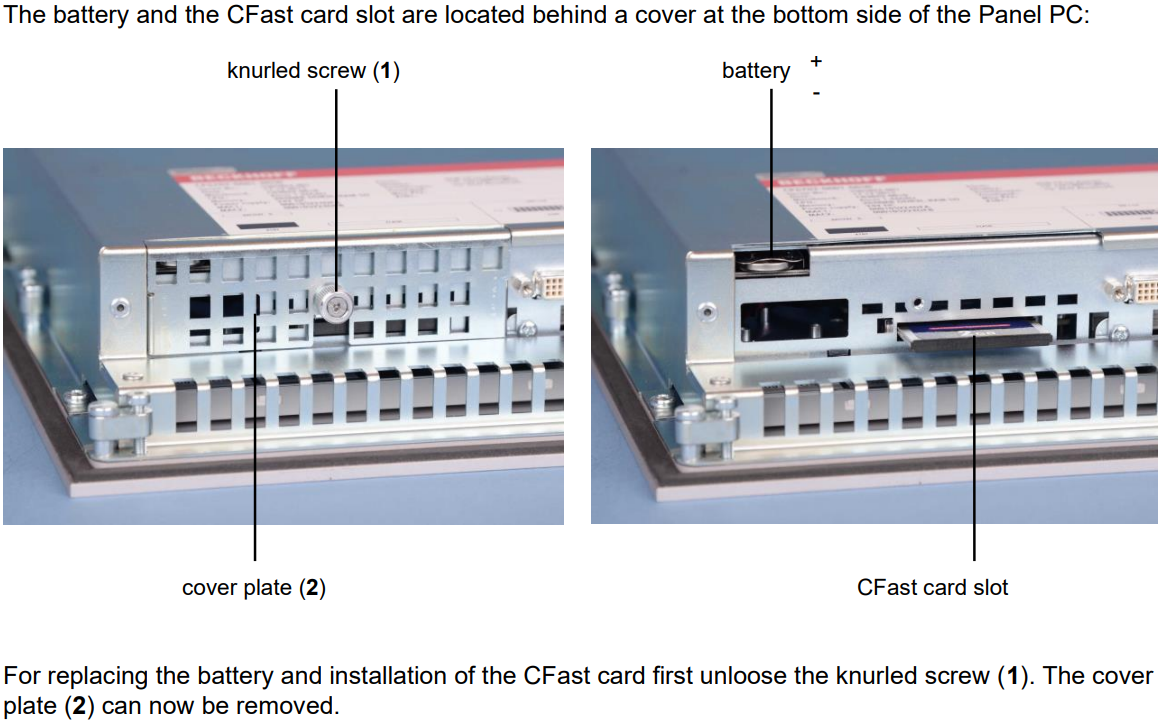
Question: Where are the battery and the CFast card slot?
Answer:
Question: How can I protect CP7811-0000-0010 CP7811-0001-0010 CP7821-0000-0010 CP7821-0001-0010 Touch Screen Panel Membrane Keyboard?
Answer:
1. Use the touchscreen only with bare hands or while wearing appropriate gloves.
2. When wearing gloves, ensure they are free of hard particles such as metal shavings, glass splinters, or similar debris.
3. You can purchase a matching-size protective film from VICPAS to safeguard your touchscreen against dirt and scratches.
Common misspellings:
CP7811-000-0010CP78111-0000-0010
CP7811-0000-0011
CP7811-00001-0010
CP7811-0001-01010
CP781-0001-0010
CP7821-0100-0010
CP7821-0000-0001
CP7821-00000-0010
CP7821-0001-00010
CP7821-0001-010
CP7812-0001-0010