ABB DSQC679 FlexPendant Touchscreen & Joystick Calibration
- Share
- Issue Time
- Nov 6,2026
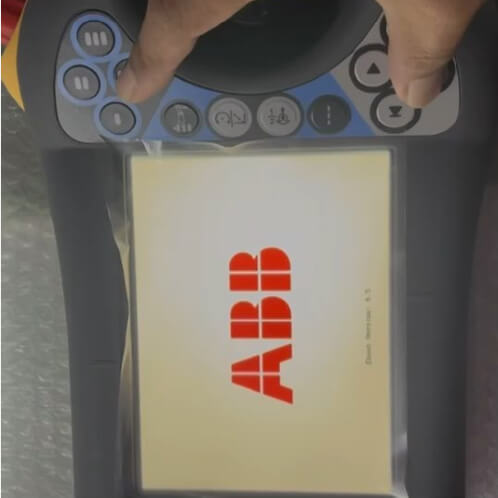
ABB DSQC679 FlexPendant Touchscreen & Joystick Calibration: A Step-by-Step Guide
Reviewed by the VICPAS technical team · Updated November 2026
A FlexPendant that responds to the wrong spot, or a joystick that drifts after you let go, is one of the most common service calls on an ABB IRC5 robot. In most cases the hardware is fine — the touchscreen digitizer and the joystick have simply drifted out of calibration, and the pendant can relearn both in under two minutes.
This guide covers the complete procedure on the ABB DSQC679 FlexPendant, with the symptoms that justify a calibration, the exact button sequence for entering calibration mode, and what to do when recalibration does not hold.
In this guide
When a calibration is actually needed
Calibrate before you replace. These symptoms point to a calibration problem rather than a failed panel:
- Offset touch — you tap a button and the pendant registers a point a few millimetres away. Menus open the wrong item, or keys near the screen edge stop responding.
- Dead border — the centre of the screen works, but the outer 5–10 mm does not respond.
- Joystick drift — the cursor keeps moving after you release the stick, or the robot keeps jogging in manual mode.
- Wrong jog direction — the stick moves the robot along an axis you did not select.
- After a display or digitizer replacement — a new panel almost always needs calibration before it tracks correctly.
If the screen shows no image at all, is cracked, or has visible liquid damage, calibration will not help — see the replacement section below.
Before you start
- Put the robot in manual mode and keep the enabling device (dead-man switch) released. Do not calibrate with the robot in automatic production.
- Keep the emergency stop within reach. Joystick calibration changes how stick input maps to robot motion, so an uncalibrated stick can produce unexpected movement on the first jog afterwards.
- Have a stylus or a non-marking plastic-tipped pen ready. Fingers are too wide for the touchscreen target points.
- Note the current program and system state. Calibration does not delete programs, but the pendant reboots during the procedure.
Watch the walkthrough — touchscreen calibration first, joystick from 0:21.
Part 1 — Touchscreen calibration
Takes about one minute. The pendant reboots twice during this part.
Enter calibration mode during boot.
Restart the pendant. While it is booting, watch the display: when the white text appears on screen, press and hold both buttons at the same time.
Release on the clearing message.
Keep both buttons held until the display shows “Clearing calibration data”, then release them. This wipes the stored touch parameters.
Restart the pendant.
After the restart the pendant boots straight into touchscreen calibration mode.
Touch each target point.
Using the stylus, tap each target point shown on the screen, one at a time, pressing firmly in the centre of each marker. Tap slowly — a rushed tap is registered at the wrong coordinate and the whole calibration has to be repeated.
Confirm.
Tap Confirm. The pendant saves the new touch map and returns to the normal display. Touchscreen calibration is complete.
Part 2 — Joystick calibration
Six prompts, in this exact order. Do not skip a direction.
Open the joystick calibration screen.
From the pendant’s control panel settings, tap Calibrate joystick to start.
Follow the six prompts in order.
Each prompt waits for the stick to reach its limit before advancing:
- Push the joystick left
- Push the joystick right
- Push the joystick up
- Push the joystick down
- Rotate the joystick clockwise
- Rotate the joystick counter-clockwise
Push each direction fully to the mechanical stop and hold it briefly — a half-travel push records a short range and the stick will feel over-sensitive afterwards.
Finish.
Tap Calibration done. The pendant stores the new ranges and exits.
Verify before returning to production
- In manual mode, jog one axis at a time at low speed and confirm the direction matches the stick.
- Release the stick and confirm the robot stops immediately — no creep, no drift.
- Open two or three menus and tap keys at the screen edges to confirm the touch map covers the full panel.
- If the pendant still drifts or the touch points are still offset, repeat the procedure once. A second failure usually means a hardware fault, not a calibration error.
Troubleshooting
| Symptom | Likely cause | Action |
|---|---|---|
| “Clearing calibration data” never appears | Buttons pressed too late or not held together | Restart and press both buttons the moment the white text appears |
| Calibration mode exits by itself | One button released early | Hold both until the clearing message is fully displayed |
| Touch points keep missing | Debris, screen protector or a worn digitizer | Clean the panel, remove any film, retry; if still failing, replace the touchscreen |
| Joystick still drifts after calibration | Worn potentiometer or damaged stick assembly | Replace the joystick module or the pendant |
| Calibration does not survive a reboot | Failing memory in the pendant | Replace the FlexPendant |
| Only part of the screen responds | Cracked digitizer or delaminated touch panel | Replace the touchscreen assembly |
When calibration is not enough
If the panel is physically damaged, the digitizer is delaminated, or the pendant no longer stores calibration after a power cycle, the unit needs parts rather than settings. VICPAS supplies HMI spares for ABB and other automation brands — touchscreen panels, membrane keypads, LCD display modules and plastic housings, including obsolete and hard-to-find models.
Need a replacement part for your FlexPendant?
Send us the model number on the back label plus a photo of the panel, and we will confirm the matching replacement before you order.
• Touch screen panels for HMI replacement
• LCD display modules
• Custom membrane keypads and housings
FAQ
Does calibrating the FlexPendant delete my programs?
No. Calibration only rewrites the touch map and joystick ranges. Programs and system parameters are untouched, though the pendant restarts during the procedure.
How often should the joystick be calibrated?
Only when symptoms appear — drift, wrong direction, or after the pendant has been dropped or serviced. There is no scheduled interval in normal use.
Can I calibrate with my finger instead of a stylus?
The target points can be tapped with a finger, but accuracy suffers because a fingertip covers a wide area. Use a stylus for the touchscreen step.
Do I need to calibrate the touchscreen after replacing the display?
Yes. A new touch panel or digitizer ships without a touch map, and the pendant must be calibrated before it tracks correctly.
The touchscreen works but the joystick does not respond at all.
A completely dead stick is a hardware fault, not a calibration issue. Check the stick assembly and its connector before ordering a full pendant.
Source: VICPAS service documentation · ABB IRC5 / DSQC679