Troubleshooting Common Failures on Allen-Bradley PanelView Plus 1000
- Share
- Issue Time
- Aug 5,2026
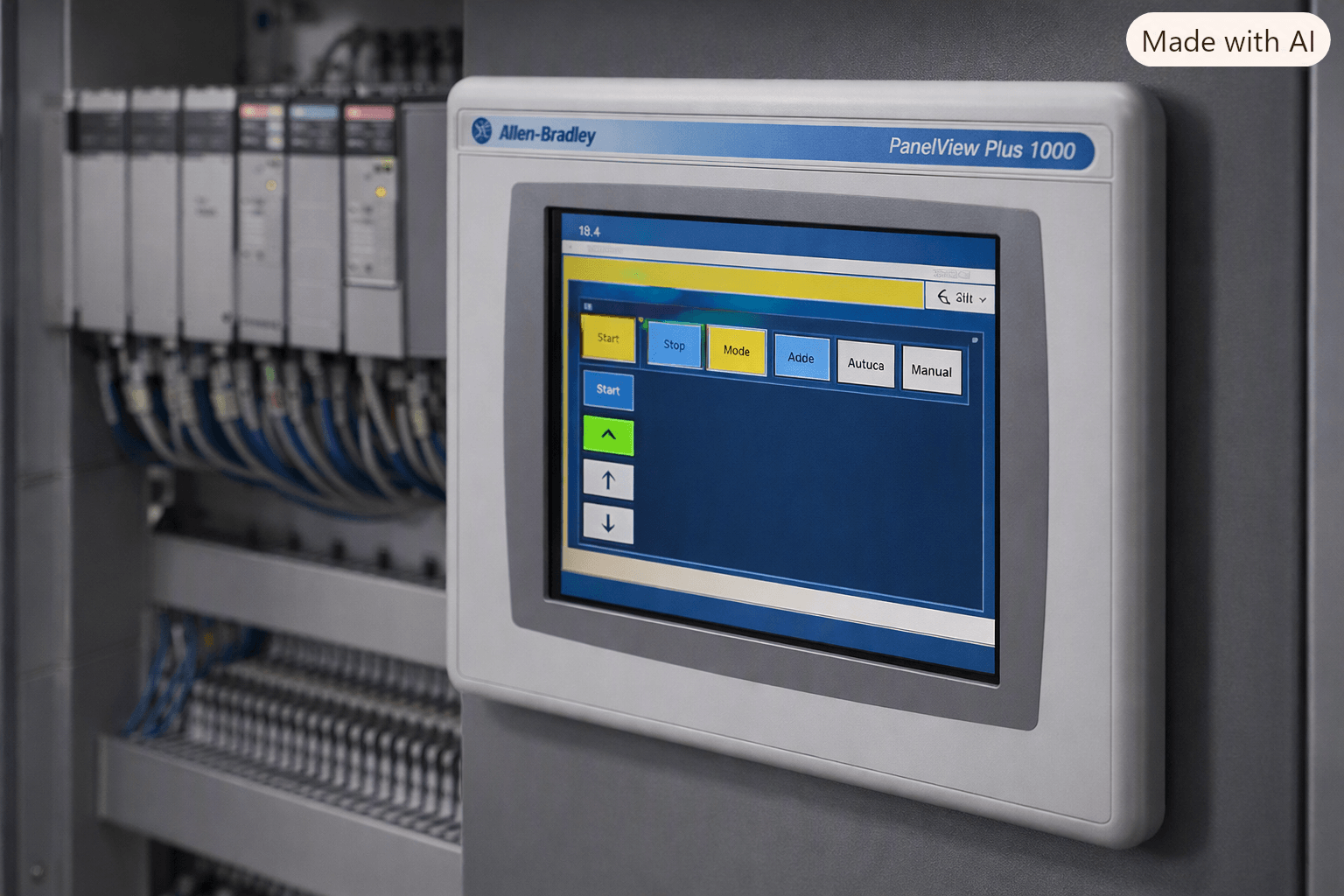
Troubleshooting Common Failures on Allen-Bradley PanelView Plus 1000: Expert Guide to Diagnosis and Repair
Table of Contents
- 1. Environmental and Water-Ingress Failures
- 2. Power-Quality and Random Shutdown Issues
- 3. Black or Blank Screen (Backlight or Display Failure)
- 4. Upside-Down or Corrupted Display
- 5. Communication Problems and Question Marks on Screen
- 6. Lock-Up After Idle Periods
- 7. Status Indicators, Startup Errors and Touch Issues
- When Replacement Parts Are the Smart Choice
- Preventive Best Practices
- References
The Allen Bradley PanelView Plus 1000 remains one of the most widely deployed HMI platforms in industrial automation. With its 10.4-inch color TFT display (640 × 480 resolution), support for touch, keypad, or combination input, and robust communication options (EtherNet/IP, serial, etc.), it continues to serve countless machines years after introduction.
Yet field experience shows that certain failure modes appear repeatedly. Environmental stress, power quality problems, backlight and display degradation, communication timeouts, lock-ups after idle periods, and firmware-related issues account for the majority of downtime. This guide consolidates practical troubleshooting steps drawn from Rockwell Automation documentation, field reports, and long-term repair experience so maintenance teams can restore operation quickly and decide when component replacement is the most cost-effective path.
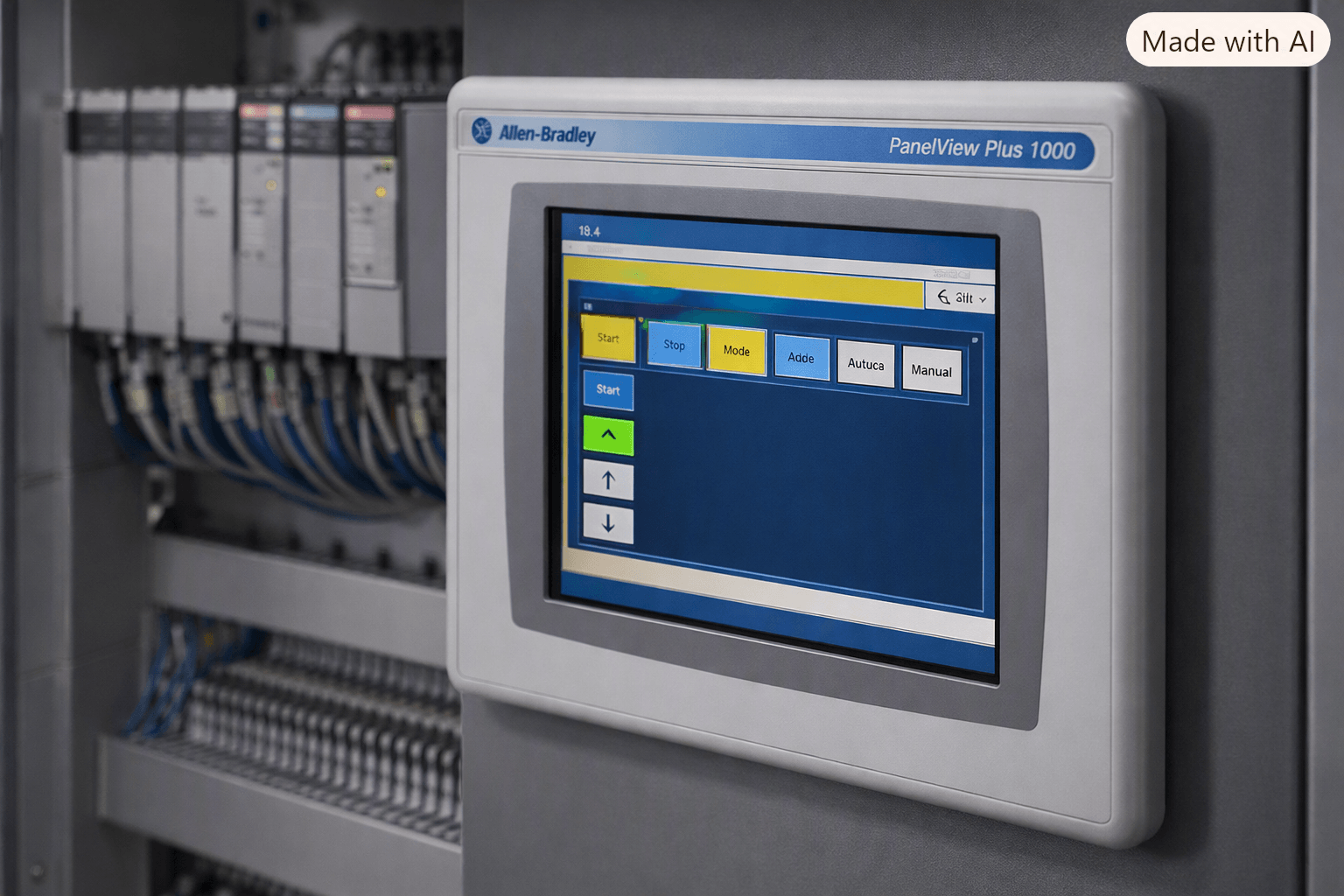
1. Environmental and Water-Ingress Failures
Water or condensation entering behind the bezel is one of the most common root causes of premature failure on the PanelView Plus 1000. Even minor moisture can produce intermittent flickering (“funky chicken” artifacts), backlight fading, complete black screens while the unit still responds to touch or communication, or permanent circuit damage.
Quick checks
- Inspect for visible water marks or meniscus lines between the bezel and LCD.
- Verify cabinet door gaskets, conduit seals, and drip shields.
- Confirm adequate ventilation to prevent condensation.
Mitigation
Install drip shields, replace worn gaskets, seal unused openings, and consider protected mounting orientations. When moisture has already caused display or touch-screen damage, replacement of the display module or touch overlay is usually required.
At VICPAS we stock a full range of compatible touchscreens, LCD displays, and plastic housing/case assemblies specifically for PanelView Plus 1000 models. Our parts are tested and backed by a 12-month warranty, helping plants return equipment to service without waiting for original-equipment lead times.
2. Power-Quality and Random Shutdown Issues
The internal switching power supply is sensitive to unclean 24 V DC supplies and thermal stress. Typical symptoms include random shutdowns after several hours of operation, complete black screens with no response, or the unit recovering only after a power cycle.
Diagnostic steps
- Measure input voltage at the terminal block (should be stable within the rated range).
- Observe the PWR/RUN LED on the logic module during a shutdown event:
- Steady green → processor is alive; suspect backlight inverter or display.
- Off → power-supply or main-board failure.
- Check for bulging or leaking electrolytic capacitors on the internal PSU if accessible.
Rockwell recommends a dedicated surge-protected supply such as the 2711P-RSACDIN mounted close to the HMI. When the internal power board or related components have failed, VICPAS can supply tested replacement logic modules, power-related assemblies, and complete display modules so the terminal can be restored economically.
3. Black or Blank Screen (Backlight or Display Failure)
A completely dark screen while communication and LEDs remain active is classic backlight or LCD failure. On TFT panels the image is invisible without backlight illumination.
Troubleshooting sequence
- Confirm power and status LEDs (COMM green, FAULT normally off after brief startup flashes).
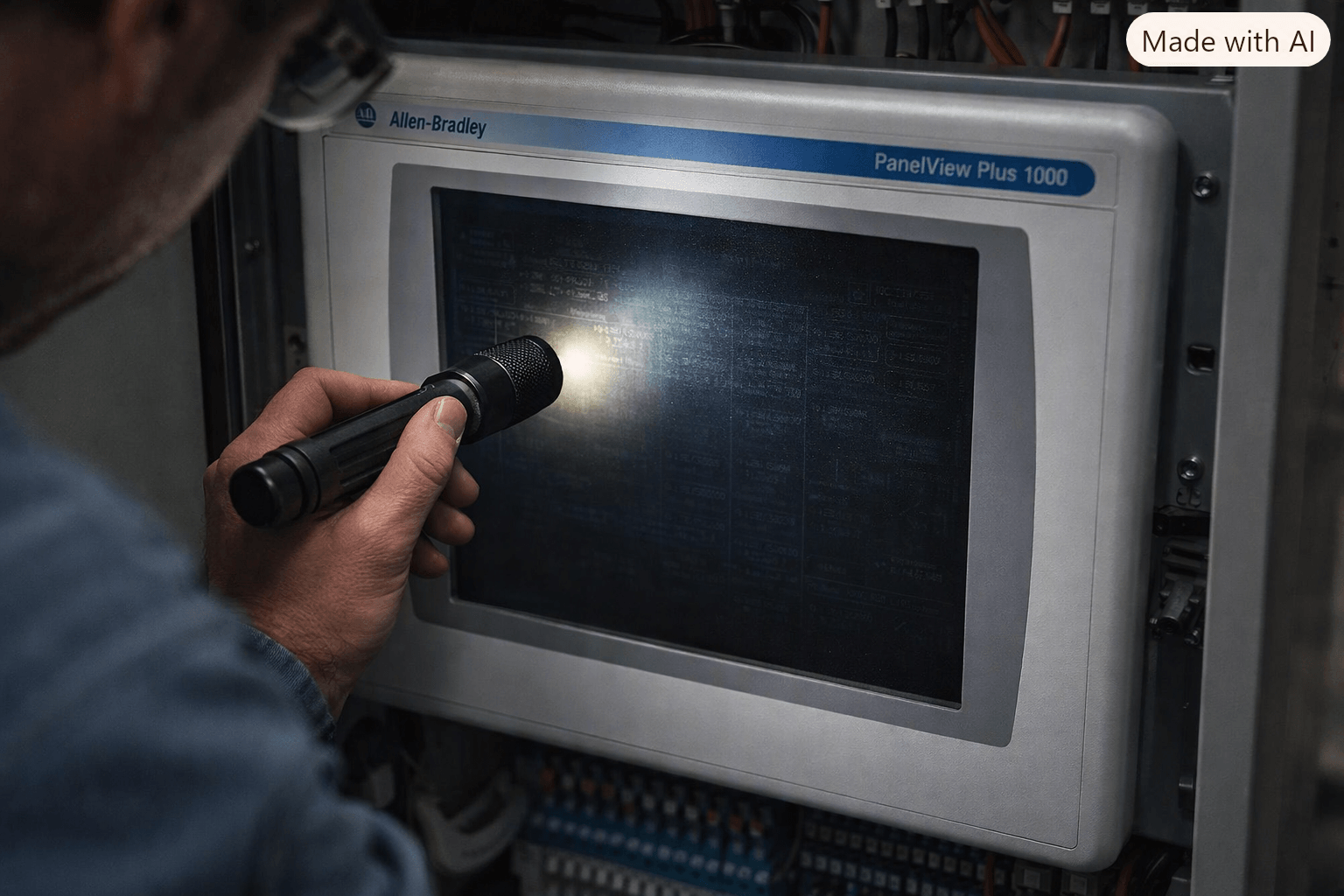
- Shine a bright flashlight at an angle across the screen; a faint image indicates backlight failure only.
- Check firmware version (backlight-related bugs were corrected in versions 4.00.03 and later).
- Attempt a controlled power cycle and, if possible, a firmware reload.
If the backlight or LCD panel itself has failed, replacement is the practical solution. VICPAS maintains ready stock of LCD displays and complete display modules for the most common 2711P-T10 / 2711P-B10 / 2711P-K10 catalog numbers, all covered by our standard 12-month warranty and worldwide shipping.
4. Upside-Down or Corrupted Display
An inverted (180°) or heavily distorted image is almost always a hardware failure of the video driver circuit or display controller. There is no software setting in FactoryTalk View Studio or on the terminal that rotates the orientation.
Actions
- Create a simple test screen with clear text to confirm the problem is not application-related.
- Power-cycle the unit.
- Attempt a firmware update (this will not cure hardware faults but rules out software issues).
- Check warranty status; many units are still covered or eligible for exchange.
When the display module is at fault, VICPAS supplies direct-replacement color touch or keypad/touch assemblies that restore correct orientation and image quality.
5. Communication Problems and Question Marks on Screen
Question marks (?) or frozen values usually indicate the HMI cannot read controller tags within the configured timeout. Causes include network latency, incorrect communication path, PLC offline, excessive screen objects, or RSLinx / FactoryTalk Linx configuration errors.
Practical checks
- Verify physical Ethernet link LEDs and cable integrity.
- Ping the PanelView from a PC on the same network.
- Confirm the communication path (e.g., 1,192.168.x.x) matches the controller.
- Increase startup timeout in Runtime Setup if needed.
- Reduce tag count or optimize RPI on busy networks.
6. Lock-Up After Idle Periods
Some units freeze after sitting unused overnight or for extended periods. Common contributors are firmware corruption, invalid remote display numbers written by the PLC, EtherNet/IP connection timeouts, or memory exhaustion.
Recovery
- Power cycle.
- Boot into firmware-update mode and re-flash a known-good version using ControlFlash or FactoryTalk tools.
- Verify Global Connections for valid screen numbers.
- Increase CIP connection timeout and RPI values if network-related.
7. Status Indicators, Startup Errors and Touch Issues
Always begin with the rear status LEDs:
- COMM (green) should be on after successful startup.
- FAULT (red) should be off except for brief flashes at power-up.
- Solid red or continuous blinking points to recoverable or fatal hardware/firmware problems (reload firmware or replace logic/display module).
Touch-screen problems (inaccurate response, “stuck touch,” or no-touch symbol after module swap) are usually resolved by recalibration or by replacing the touch overlay. Calibration is performed in Terminal Settings > Input Devices > Touch Screen > Calibration using a plastic stylus with ≥1.3 mm tip radius.
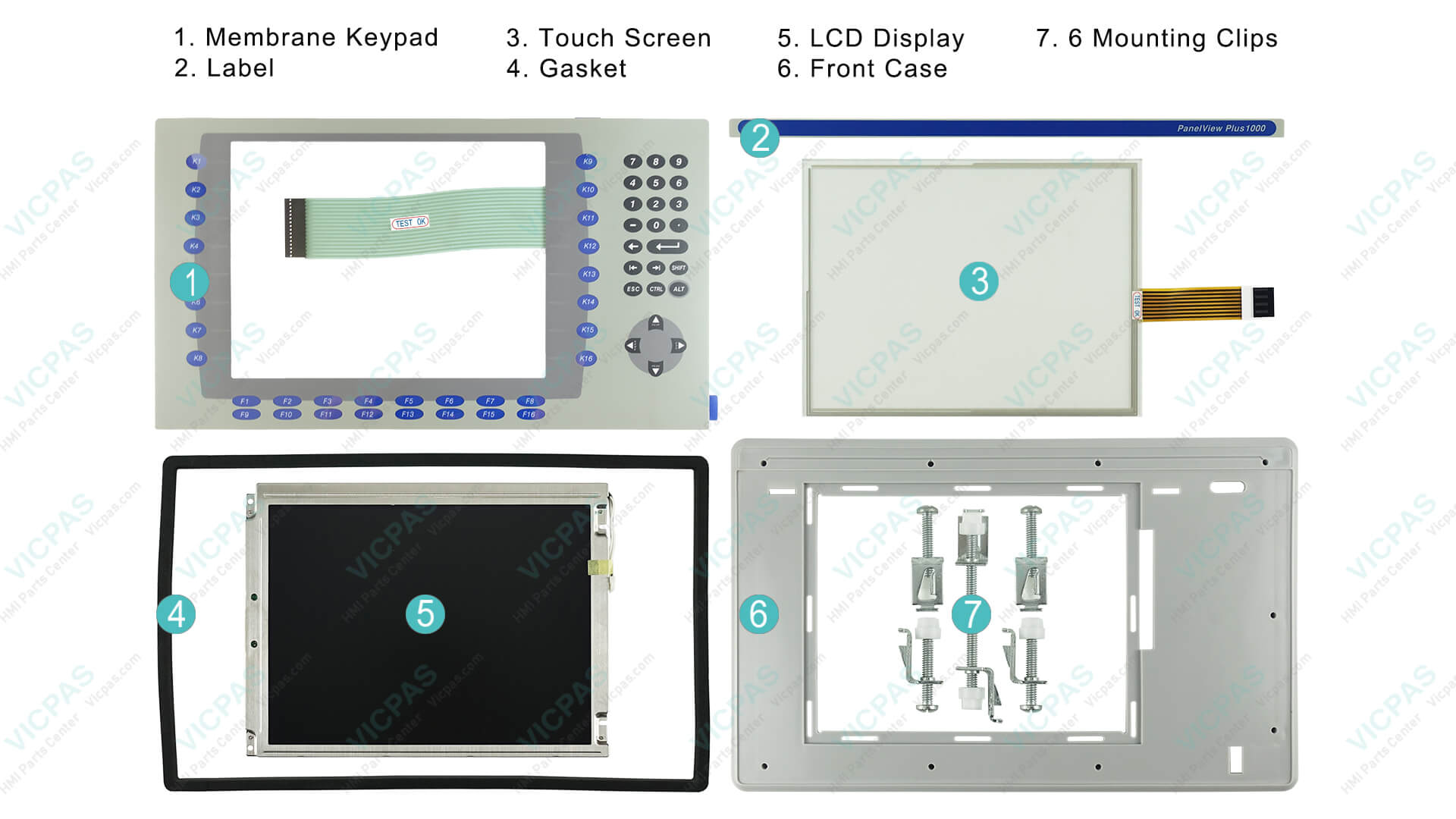
VICPAS stocks membrane keypads, resistive touchscreens, and complete front assemblies for virtually every PanelView Plus 1000 variant (2711P-B10C4A1, 2711P-T10C4D1, 2711P-K10C4A2, etc.). All parts undergo functional testing and carry a 12-month VICPAS warranty.
When Replacement Parts Are the Smart Choice
Repair time, original-equipment lead times, and the cost of prolonged downtime often make quality replacement components the most economical route. VICPAS (VICPAS Touch Technology Co., Ltd.) has specialized in HMI operator-panel parts for more than 20 years. We offer:
- Membrane keypads, touchscreens, LCD displays, and plastic housings specifically for Allen Bradley PanelView Plus 1000 terminals
- 12-month warranty on most products
- Urgent worldwide shipping (DHL, UPS, FedEx, TNT)
- No minimum order quantity and customization capability for hard-to-find or obsolete items
- Large inventory of both new-surplus and fully tested reconditioned parts
Browse our complete PanelView Plus 1000 parts selection at:
https://www.vicpas.com/products2110259/Panelview-Plus-1000.htm
For company background, service capabilities, and ordering information visit:
https://www.vicpas.com/comm01.htm
Preventive Best Practices
- Use a clean, surge-protected 24 V DC supply close to the terminal.
- Protect against moisture with proper cabinet sealing and drip shields.
- Keep firmware current (4.00.03 or later recommended for backlight issues).
- Maintain regular backups of the .mer application.
- Monitor ambient temperature and ensure adequate airflow.
- Schedule periodic visual inspections of the bezel and seals.
By combining systematic diagnosis with ready access to quality replacement parts, most Allen Bradley PanelView Plus 1000 failures can be resolved quickly and cost-effectively, minimizing production interruptions.
If you are currently experiencing any of the symptoms described above, contact the VICPAS technical team for part identification, availability, and fast quotation. Our engineers are ready to help you select the correct touchscreen, keypad, display, or complete module so your HMI is back online with minimal downtime.
References
- PanelView Plus 1000 Failures: Fix Environmental & Power Issues – Industrial Monitor Direct
- PanelView Plus 1000 Shuts Off? Power Supply Fix Guide – Industrial Monitor Direct
- PanelView Plus 1000 Display Upside Down: Troubleshooting & Repair – Industrial Monitor Direct
- Panelview Plus 1000 Troubleshooting – DO Supply
- PanelView Plus Installation Instructions (2711P-IN001) – Rockwell Automation
- Troubleshooting Black Screen on PanelView Plus – Infoneva
- PV+ 1000 No Display On Screen – PLCtalk Forum
- PanelView Plus 1000 Question Marks – Fix Screen Latency – Industrial Monitor Direct
- Allen-Bradley PanelView Plus 2711P User Manual – Manualzz
- Fix PanelView Plus 1000 Locked Up After Being Idle Overnight – Industrial Monitor Direct
Disclaimer: VICPAS supplies independent replacement and reconditioned HMI components. We are not an authorized Rockwell Automation distributor. All trademarks remain the property of their respective owners. Always follow official Rockwell safety and installation guidelines when working on industrial equipment.