Troubleshooting Common Problems on Allen Bradley PanelView Plus 600: A Complete Practical Guide
- Share
- Issue Time
- Jul 25,2026
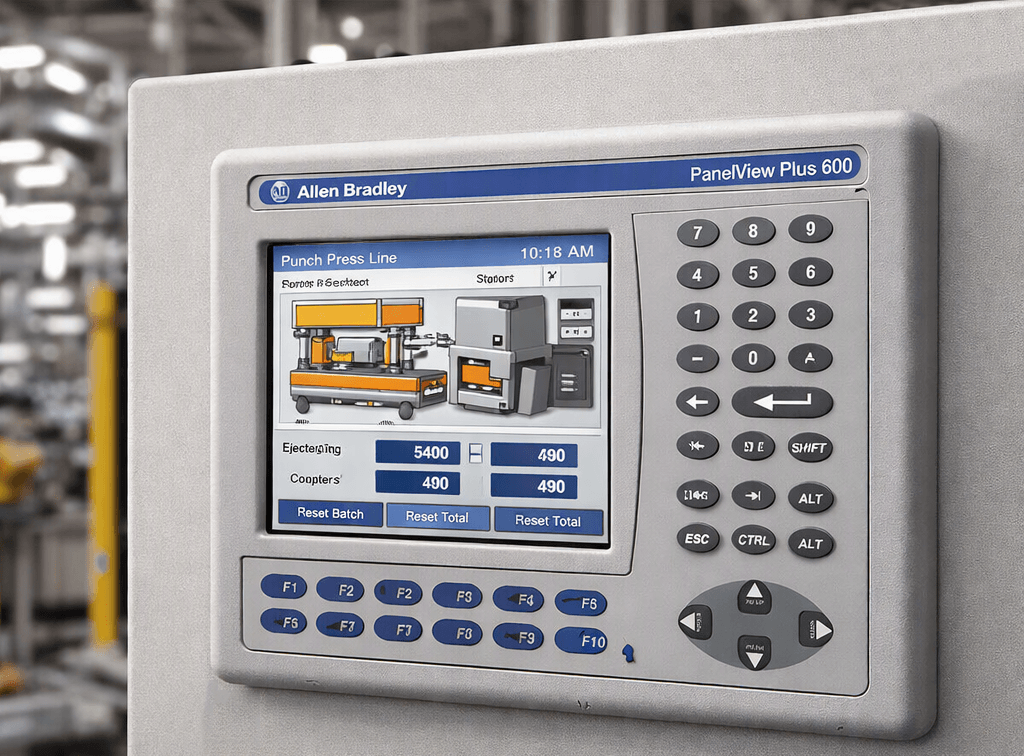
Troubleshooting Common Problems on Allen Bradley PanelView Plus 600: A Complete Practical Guide
Table of Contents
- 1. Startup Problems and Status Indicator Diagnostics
- 2. Common Startup Error Messages
- 3. Display Problems: Blank, Dim, Flickering, or Damaged Screens
- 4. Touchscreen Issues: Unresponsive, Stuck, or Inaccurate Response
- 5. Communication and Application Problems
- 6. Preventive Maintenance Recommendations
- When to Replace Parts Instead of Repairing
- Final Thoughts
- References
The Allen Bradley PanelView Plus 600 remains one of the most widely deployed HMI terminals in industrial automation. Its compact 5.7-inch display, modular design, and reliable performance make it a workhorse on countless machines. However, like any long-serving industrial device, it eventually encounters common issues such as startup failures, blank or dim screens, unresponsive touchscreens, communication faults, and error codes.
This guide draws from official Rockwell Automation documentation, field-proven troubleshooting methods, and real-world user reports to help maintenance technicians and engineers quickly diagnose and resolve the most frequent problems. When hardware replacement becomes necessary, high-quality compatible parts from specialists like VICPAS can restore operation faster and more cost-effectively than waiting for OEM lead times.
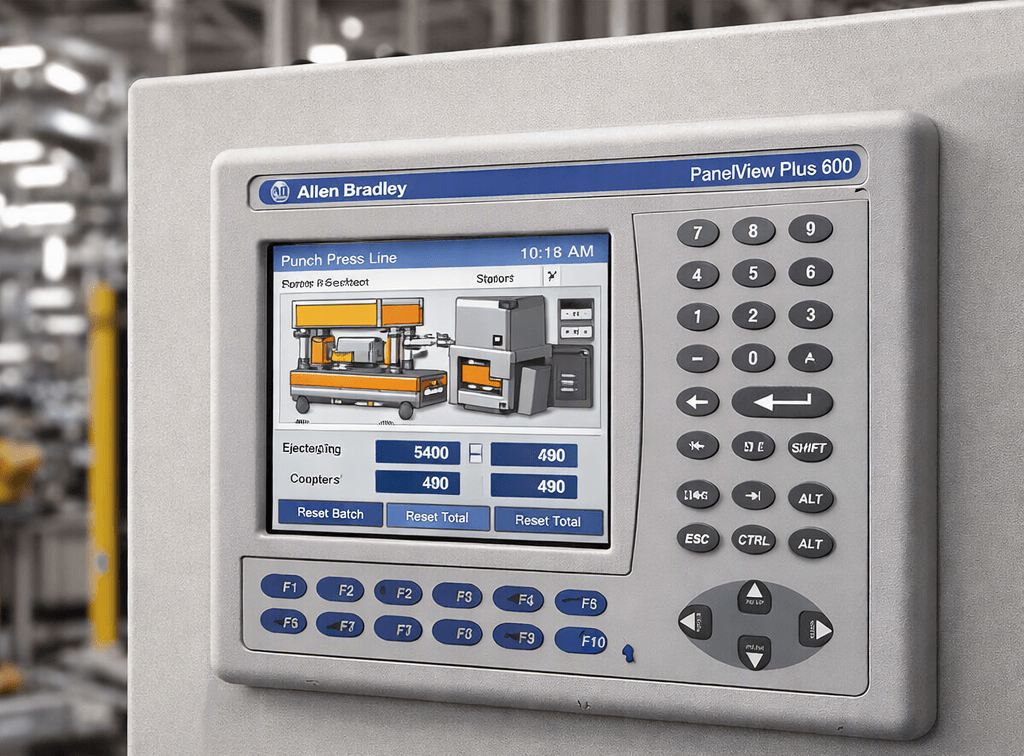
1. Startup Problems and Status Indicator Diagnostics
According to Rockwell Automation’s installation instructions and user manuals, the first step for any PanelView Plus 600 that fails to operate correctly is to check power and status indicators.
Power verification
Inadequate or unstable power is a leading cause of unpredictable behavior. Confirm that the terminal receives the correct voltage (typically 18–30 V DC or 90–130/180–265 V AC depending on the model) and that wiring polarity is correct.
Status indicators (located on the rear of the terminal)
- COMM (green) – Indicates communication status
- FAULT (red) – Indicates hardware faults
Normal startup: FAULT off, COMM on.
Common interpretations:
- Both indicators off → Check power cable and supply
- FAULT on solid → Hardware fault; restart the terminal. If the error persists, the unit may require service
- FAULT blinking → No application loaded or application is corrupt; reload the .MER file
- COMM blinking → Communication not established; verify baud rate, controller connections, and that the PLC is in Run mode
Rockwell’s official troubleshooting chapters emphasize reviewing system startup and error messages displayed on the screen during boot.
VICPAS tip: Many startup issues that appear hardware-related are actually resolved by replacing a failing display module or logic board connection. VICPAS stocks tested replacement LCD displays and complete front assemblies for the PanelView Plus 600 series with a 12-month warranty and same-day shipping options.
2. Common Startup Error Messages
Rockwell Support documentation lists specific startup error messages. For the 400 and 600 models, persistent test failures often require terminal replacement rather than simple reseating of components (unlike larger 700–1500 units that may need SO-DIMM RAM reseating).
Frequent messages reported by users include:
- Watchdog test error (e.g., “30 watchdog test error”) – Often resolved by reloading firmware
- Fatal 3A – Touchscreen self-test failure (stuck touch element detected at boot)
- Application does not run / file system errors
To access configuration mode or safe mode on most PanelView Plus 600 units, watch for the flashing white box in the lower-left corner of the screen during power-up and touch it.
3. Display Problems: Blank, Dim, Flickering, or Damaged Screens
Display failures are among the most common reasons technicians search for PanelView Plus 600 troubleshooting.
Typical symptoms and causes
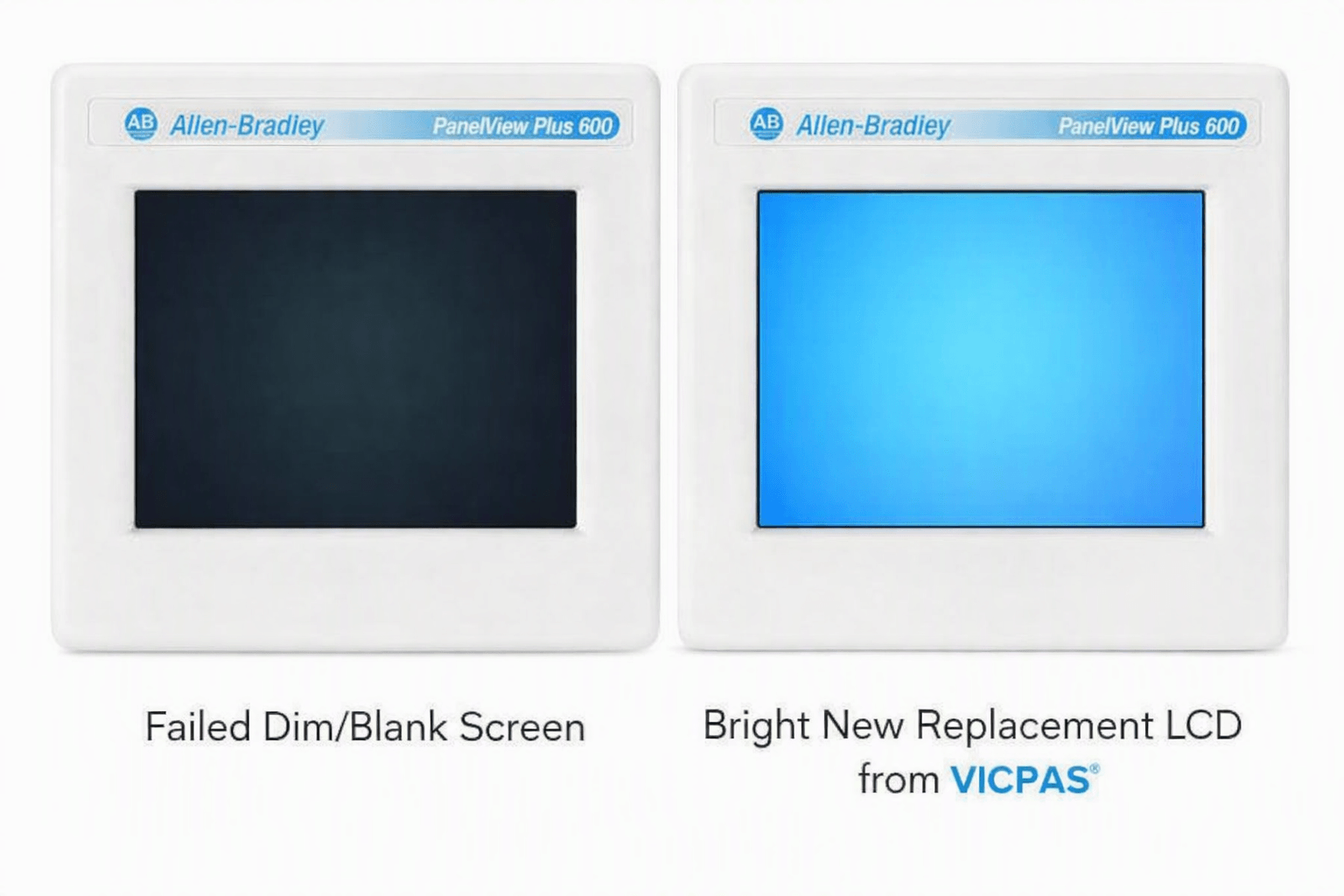
- Completely blank or black screen → Failed backlight, LCD panel failure, or power issue to the display
- Dim or flickering screen → Aging CCFL backlight or unstable power
- Dead pixels, lines, or color distortion → LCD damage
- Cracked screen → Physical impact
Recommended steps
- Verify power and status indicators first.
- Power-cycle the terminal and observe the boot sequence.
- If the backlight is dead but the unit otherwise responds, the LCD assembly needs replacement.
Replacement of the LCD panel or complete display assembly is usually the fastest and most reliable fix. VICPAS supplies high-quality compatible LCD panels and fully assembled front bezels specifically for PanelView Plus 600 models (including 2711P-T6C, 2711P-B6C, and related catalog numbers). These parts are designed for straightforward installation and come with a full 1-year VICPAS warranty.
4. Touchscreen Issues: Unresponsive, Stuck, or Inaccurate Response
Touchscreen problems are frequently discussed on industrial forums such as PLCTalk and MrPLC.
Fatal 3A (Stuck Touch) Error
This error occurs when the terminal detects a permanently pressed touch element during the boot self-test. Common causes include:
- Physical damage or nicks on the touchscreen
- Debris or pressure from an anti-glare overlay
- Damaged ribbon cable or connector
- Moisture ingress
Field-proven fixes
- Power down completely and remove the backup battery for 10–15 seconds, then reinstall and power on (forces a full hardware reset of the touch controller).
- Remove any protective overlay and firmly press across the entire screen surface.
- Inspect and reseat the touchscreen ribbon cable; clean contacts with isopropyl alcohol if needed.
- If the error persists, replace the touchscreen membrane or complete front assembly.
Other common touch complaints include dead zones (especially the bottom edge from repeated use) and calibration drift. Periodic recalibration via the terminal’s configuration menu helps, but worn resistive layers eventually require replacement.
VICPAS specializes in analog resistive touchscreens and membrane keypads for the entire PanelView Plus 600 family. Their replacement kits are fully tested, available in stock, and supported by experienced technicians who understand the exact mechanical fit of these older modular terminals.
5. Communication and Application Problems
- Loss of communication with the PLC → Check cables, baud rates, IP settings (for Ethernet models), and controller mode.
- Application fails to download or run → Verify communication settings match between the programming PC and terminal, ensure the .MER file is valid, and check memory card seating.
- “File Access Error” or similar → Often related to corrupted files or full memory; reformatting or reloading the application usually resolves it.
Always keep a current backup of the runtime application. When firmware reloads are required, follow Rockwell’s documented procedures carefully.
6. Preventive Maintenance Recommendations
- Keep the display clean using approved methods only.
- Ensure stable power and proper grounding.
- Avoid excessive pressure or sharp objects on the touchscreen.
- Install overlays carefully to prevent pressure points.
- Maintain regular backups of applications and configurations.
- Monitor status indicators during routine checks.
When to Replace Parts Instead of Repairing
Many PanelView Plus 600 units have been in service for 10–15+ years. While Rockwell still supports repairs through authorized channels, lead times and cost can be high. For display, touchscreen, and keypad failures, aftermarket or specialist replacement parts offer a practical alternative that restores functionality quickly.
Why technicians choose VICPAS for PanelView Plus 600 parts
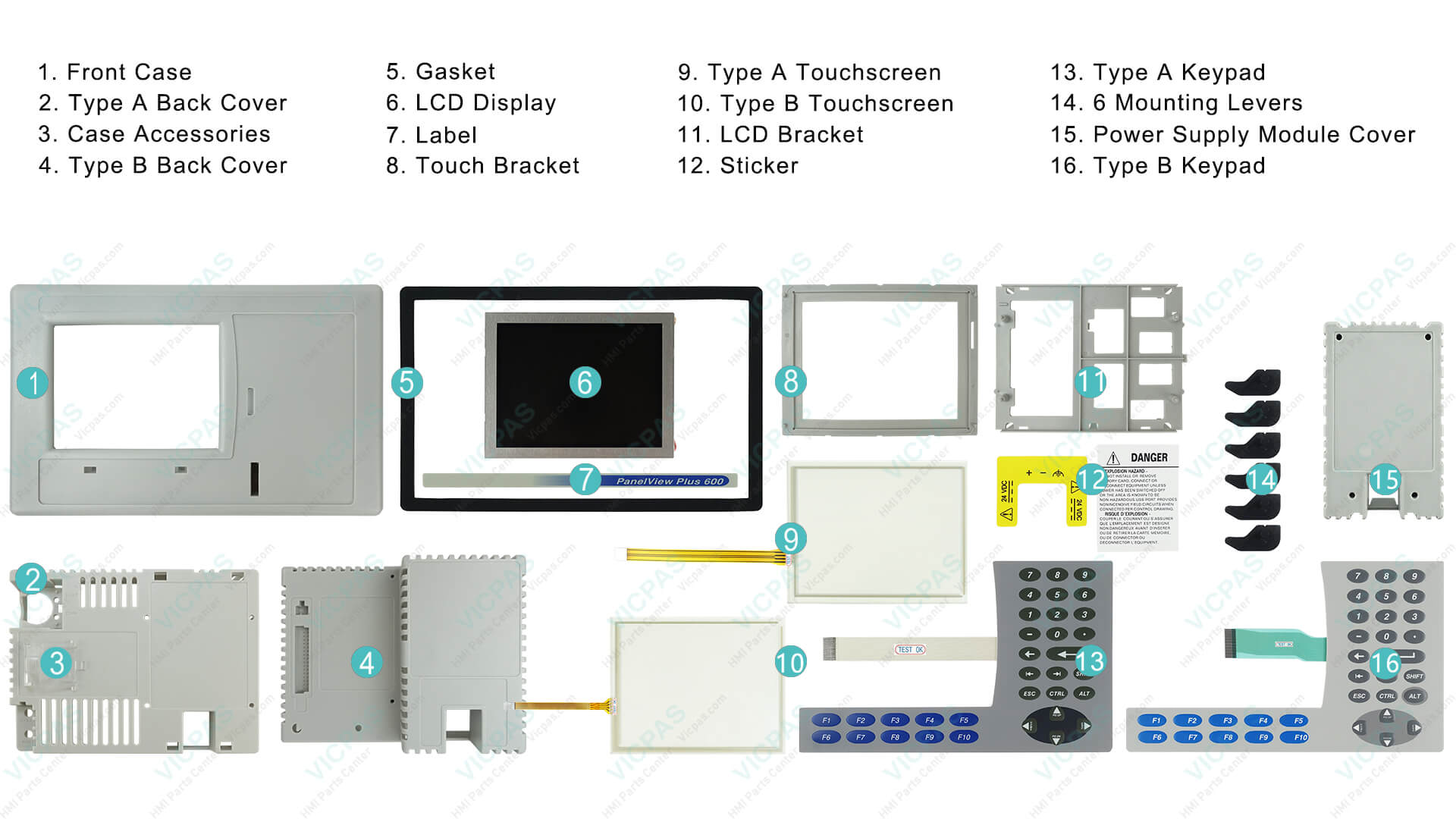
VICPAS has over 20 years of experience supplying HMI operator panel parts. They maintain a large inventory of touchscreens, membrane keypads, LCD displays, and complete front assemblies specifically for Allen Bradley PanelView Plus 600 terminals. Key advantages include:
- Brand-new and thoroughly tested parts
- 12-month VICPAS warranty
- Urgent worldwide shipping (DHL, UPS, FedEx, TNT)
- No minimum order quantity – even single pieces can be ordered
- Customization support for hard-to-find or obsolete items
- Dedicated technical support team
Browse the full range of PanelView Plus 600 replacement parts here:
https://www.vicpas.com/products2100693/PanelView-Plus-600.htm
For a fast quote or technical assistance, contact VICPAS at sales@vicpas.com or visit https://www.vicpas.com/comm01.htm.
Final Thoughts
Most common problems on the Allen Bradley PanelView Plus 600 can be diagnosed systematically by following the official status-indicator checks, power verification, and error-message guidance from Rockwell documentation. When hardware components such as the LCD, touchscreen, or keypad fail, timely replacement with quality compatible parts keeps production running without extended downtime.
By combining official troubleshooting procedures with practical field experience and reliable replacement solutions from specialists like VICPAS, maintenance teams can maximize the service life of these proven HMI terminals.
Need help identifying the exact part for your PanelView Plus 600 model? Contact the VICPAS team today for expert guidance and fast delivery.
References
- Rockwell Automation – PanelView Plus and PanelView Plus Compact 400 and 600 Terminals Installation Instructions
- Rockwell Automation – PanelView Plus Terminals User Manual
- Rockwell Support – PanelView Plus Startup Error Messages
- AoteWell – PanelView Plus 600 Troubleshooting Guide
- Monitech – PanelView Plus 600 Display Problems
- Monitech – Allen Bradley PanelView 600 Plus Common Issues
- Industrial Monitor Direct – Fatal 3A Touchscreen Stuck Error Fix
- PLCTalk Forum – PanelView Plus 600 Fatal 3A Stuck Touch
- PLCTalk Forum – PanelView Plus 600 Blank Screen
- MrPLC Forum – PanelView Plus 600 Watchdog Test Error