Siemens LOGO! TD Display Troubleshooting and Common Issues: Complete Expert Guide
- Share
- Issue Time
- Jun 9,2026
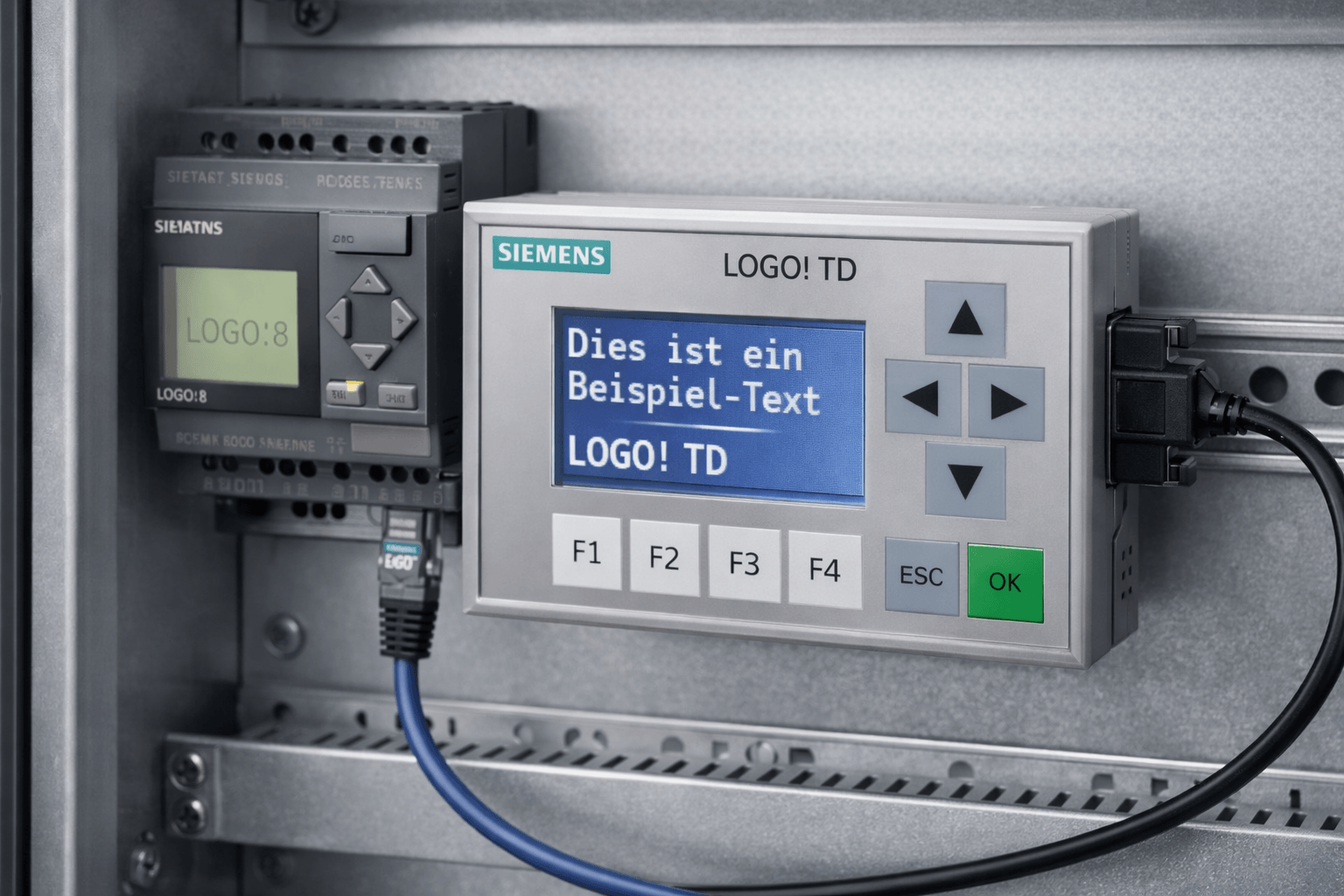
Siemens LOGO! TD Display Troubleshooting and Common Issues: Complete Expert Guide
By VICPAS Industrial Automation Experts
Updated: June 2026
Main Keyword Focus: Siemens LOGO! TD Display
Table of Contents
At VICPAS, we specialize in providing high-quality replacement parts, repairs, and technical support for Siemens automation systems, including the full range of Siemens LOGO! TD Displays. With over 20 years of experience in HMI and operator panels, our team has helped thousands of engineers resolve complex display and communication issues quickly.
Whether you're facing connection failures, message display problems, or hardware glitches with your Siemens LOGO! TD (or TDE variant), this comprehensive guide draws from official Siemens documentation, real-world forum discussions, and our hands-on expertise. We'll cover the most common issues and provide actionable troubleshooting steps.
Why Siemens LOGO! TD Displays Are Popular (and Prone to Issues)
The Siemens LOGO! TD Display is a compact text display module (catalog 6ED1055-4MH00-0BA1) designed for LOGO! 8 controllers. It offers a 4-line x 16-character STN LCD, easy integration via Ethernet or expansion cable, and support for message texts, diagnostics, and basic operator interaction.
Common pain points include:
- Communication and detection failures with LOGO! Soft Comfort
- IP address loss or network conflicts
- Message text not displaying correctly (green/blue zone confusion)
- Backlight issues, no response, or firmware-related errors
- Web server display update problems
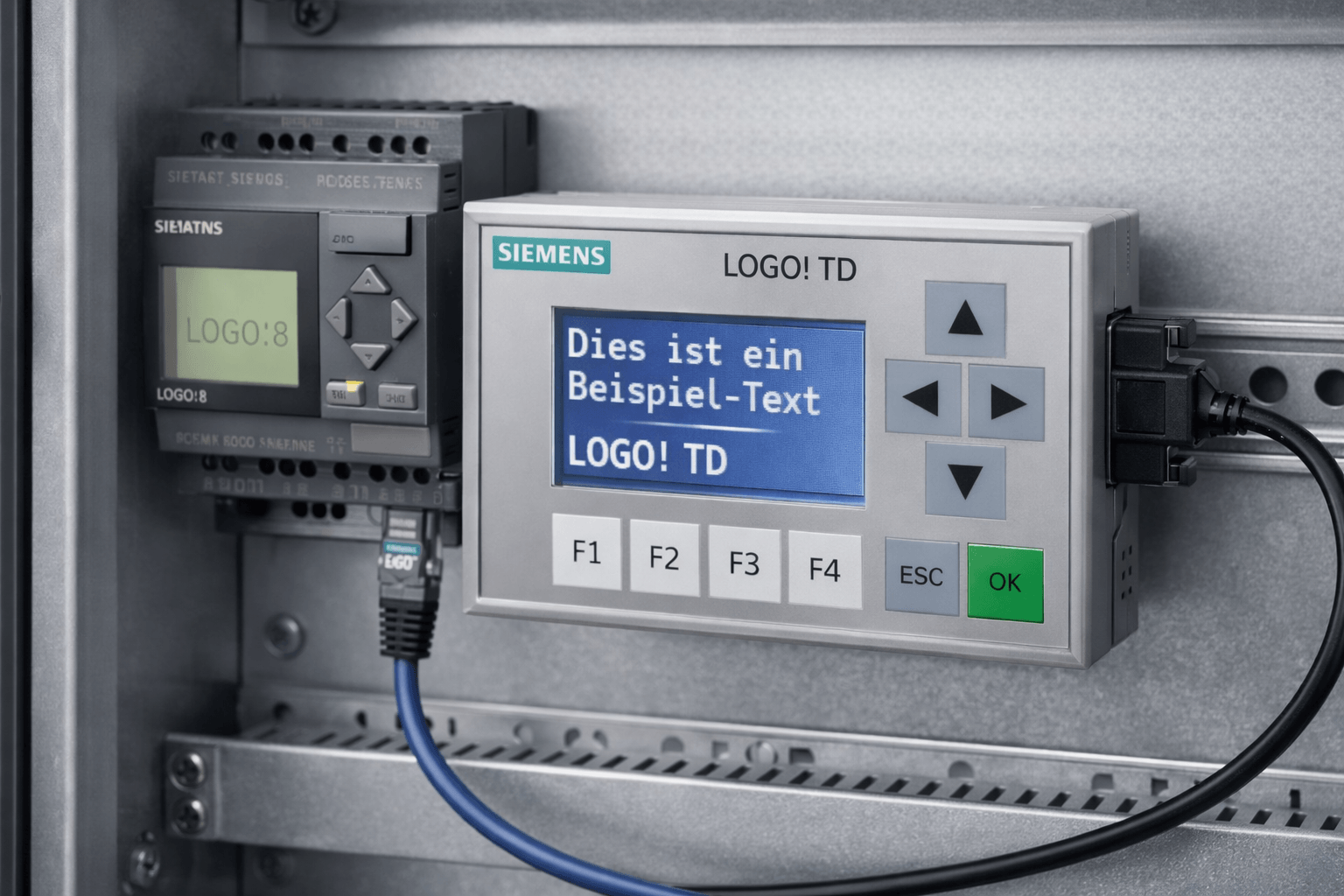
Common Siemens LOGO! TD Display Problems
- TDE/TD Not Detected by LOGO! Soft Comfort
- No Communication or "BM No Response" Error
- IP Address Loss After Power Failure
- Message Text Not Showing or Truncated (Green vs Blue zones)
- Web Server Display Not Updating Correctly (e.g., missing cursor keys on FS6 firmware)
- Backlight/Blank Screen or Unresponsive Keys
- Ping Failures and Network Conflicts
- Alarm Priority or Display Destination Issues
Step-by-Step Troubleshooting Guide
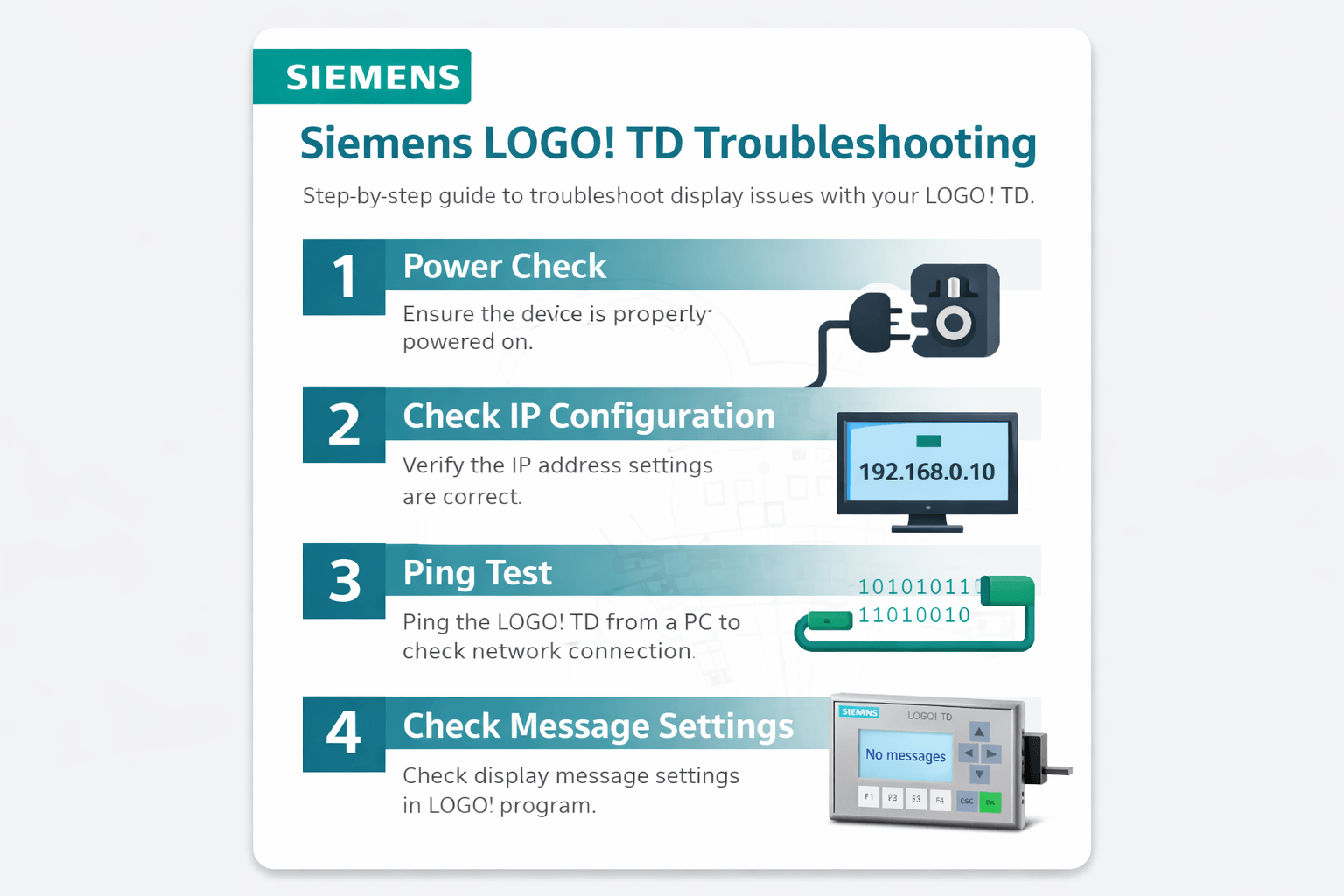
1. Verify Physical Connections and Power
- Use shielded CAT5e or better Ethernet cables.
- Confirm 12/24 VDC power supply with correct polarity.
- Check expansion cable for TD modules.
- Inspect for loose connections or damaged ports.
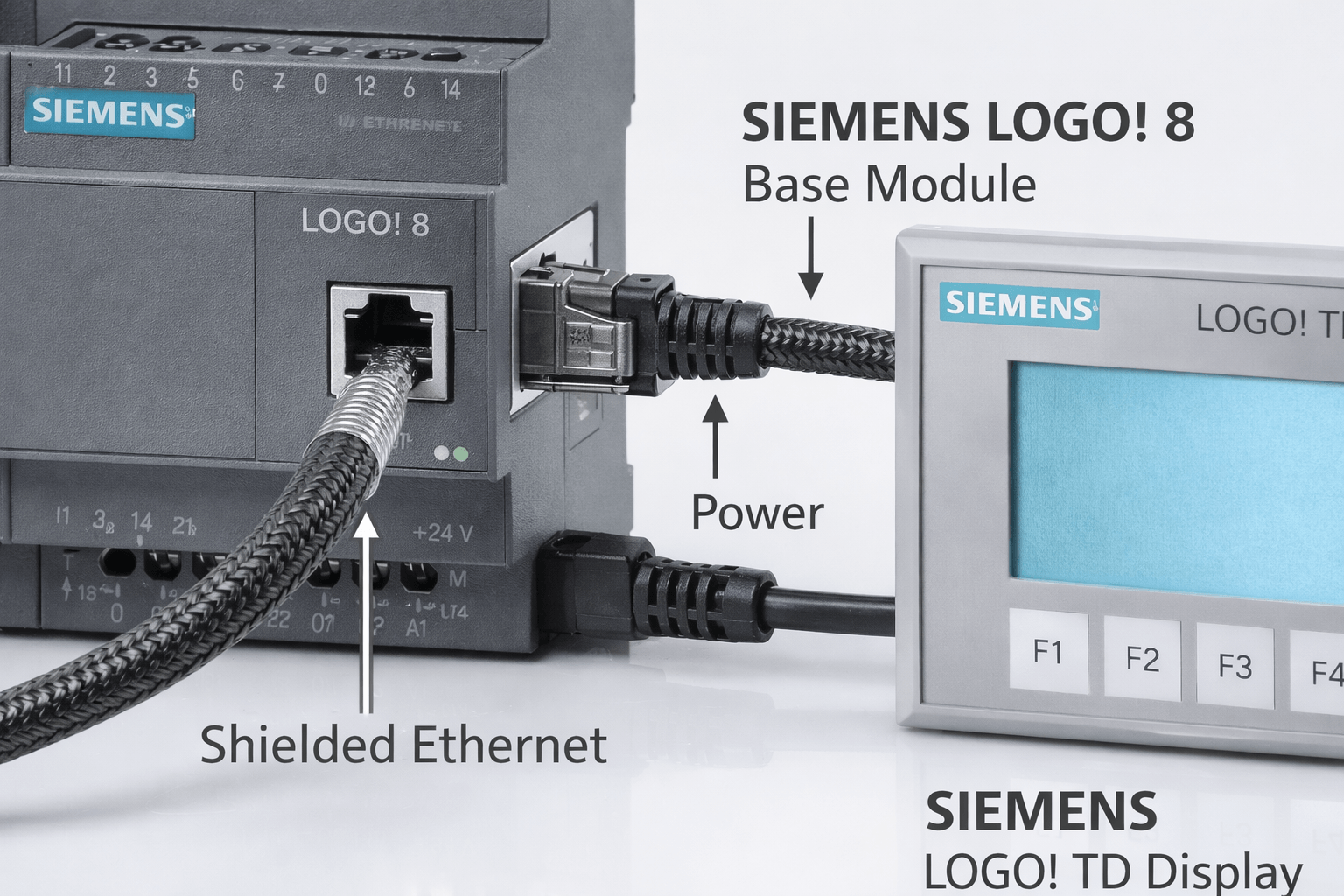
Pro Tip from VICPAS: Always power cycle both base and display after reconnecting.
2. Check and Configure Network Settings
- Default IPs: TDE often 192.168.0.2, Base 192.168.0.3.
- Set your PC to the same subnet (e.g., 192.168.0.10, mask 255.255.255.0).
- Access TD menu for network configuration.
- Test with
pingfrom command prompt.
Run LOGO! Soft Comfort as Administrator to avoid detection issues.
3. Message Text Display Configuration
A frequent confusion is the green and blue zones in LOGO! Soft Comfort — they represent extended character space on the same display, not separate devices.
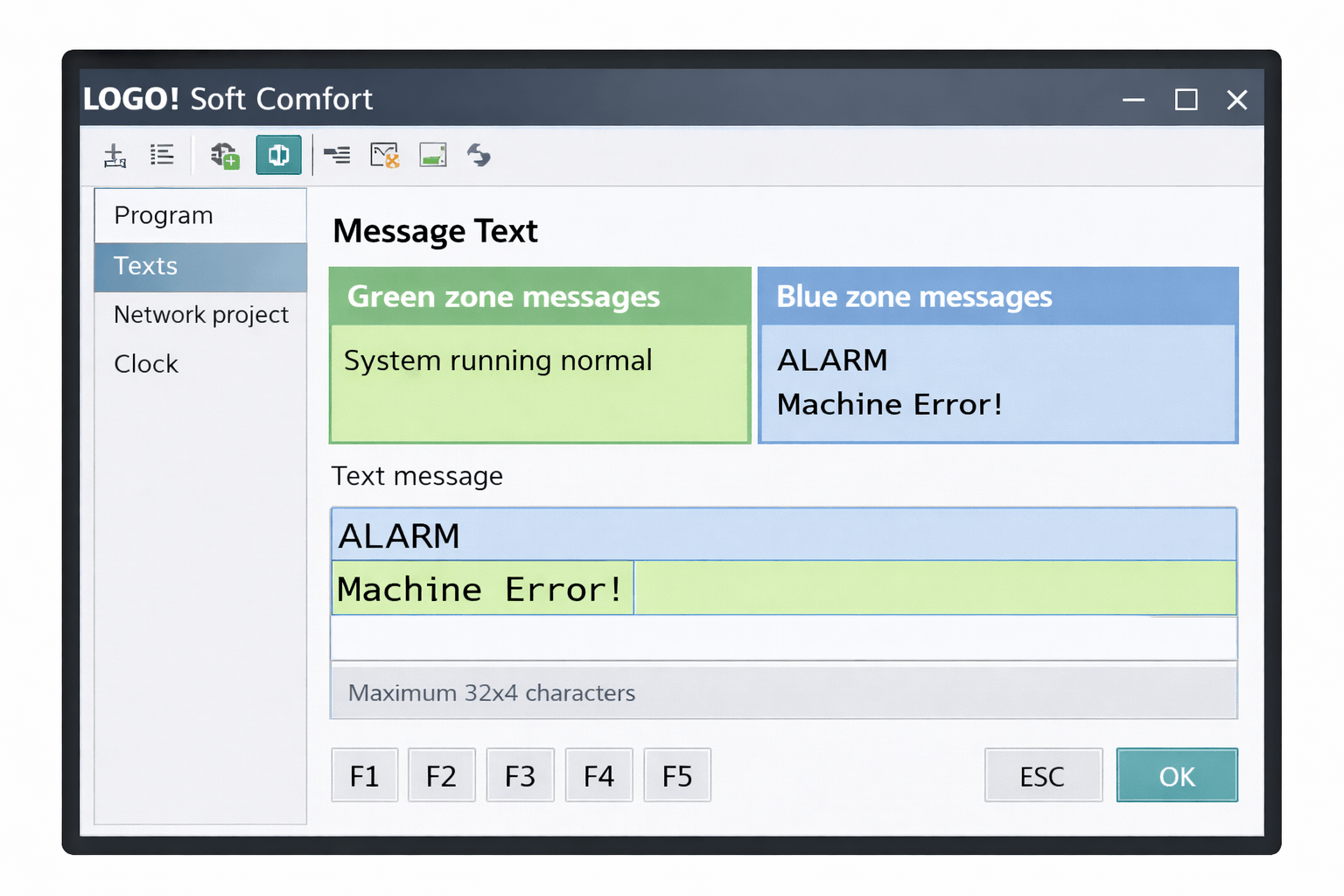
- Go to File → Properties → Message Text and select GBK character set for longer messages (up to 16 chars/line).
- In Message Block Properties: Enable character sets, set Display Mode (Line by Line, Character by Character, or Static), and choose destination (LOGO! TD, onboard, or both).
- Use M27 marker to toggle between character sets.
4. Advanced Diagnostics and Errors
Access the diagnostic menu on the TD/LOGO! for error codes (Ethernet, SD card, expansion module issues). For "TD initiating → BM No Response": Verify firmware compatibility and connections. Firmware-specific bugs (e.g., FS6 web server display updates): Check Siemens forums for patches.
5. Best Practices for Reliability
- Use static IP addresses and document them.
- Install industrial-grade SD cards and consider UPS protection.
- Keep firmware and LOGO! Soft Comfort updated.
- Enable password protection in Operator Mode.
- Regularly back up programs.
Why Choose VICPAS for Your Siemens LOGO! TD Needs?
As a leading supplier of HMI parts and automation components, VICPAS offers:
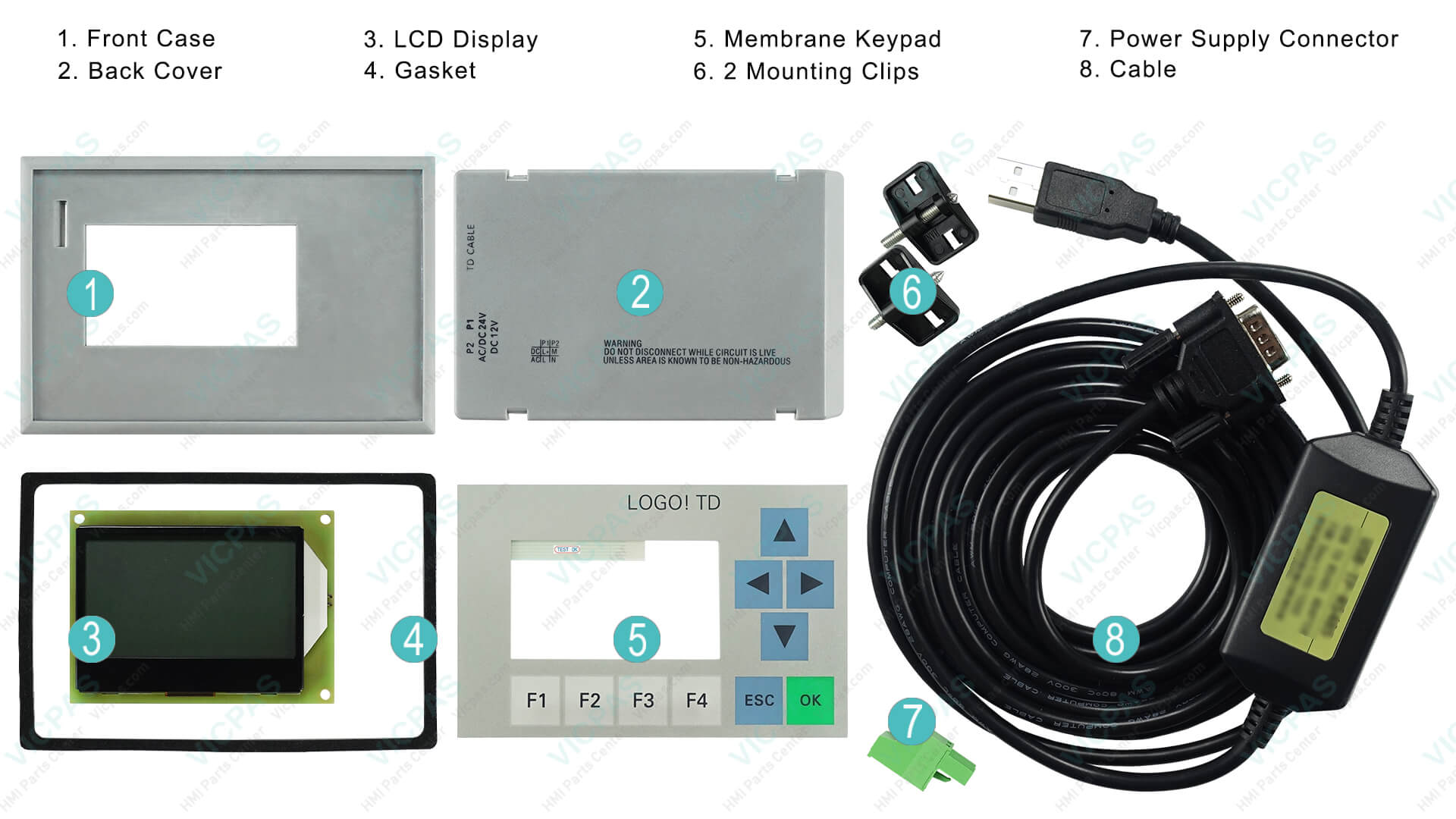
- Authentic and high-quality Siemens LOGO! TD displays and compatible parts.
- Fast worldwide shipping (often same-day).
- 1-year warranty on most products.
- Expert technical support from engineers with deep Siemens experience.
- Customization services for hard-to-find or obsolete components.
Need Professional Help?
If these steps don't resolve your issue, our team is ready to assist with diagnostics, parts replacement, or full system support. Email sales@vicpas.com or call +86 13922741901.
References & Further Reading
This guide is based on aggregated expert knowledge and real customer cases handled by VICPAS. Always refer to the latest Siemens manuals for your specific firmware version.
*VICPAS is not an authorized distributor of Siemens but provides high-quality compatible and replacement solutions with full support.*