Siemens LOGO! TDE Display: Complete Troubleshooting Guide for Connection Issues
- Share
- Issue Time
- Jun 3,2026
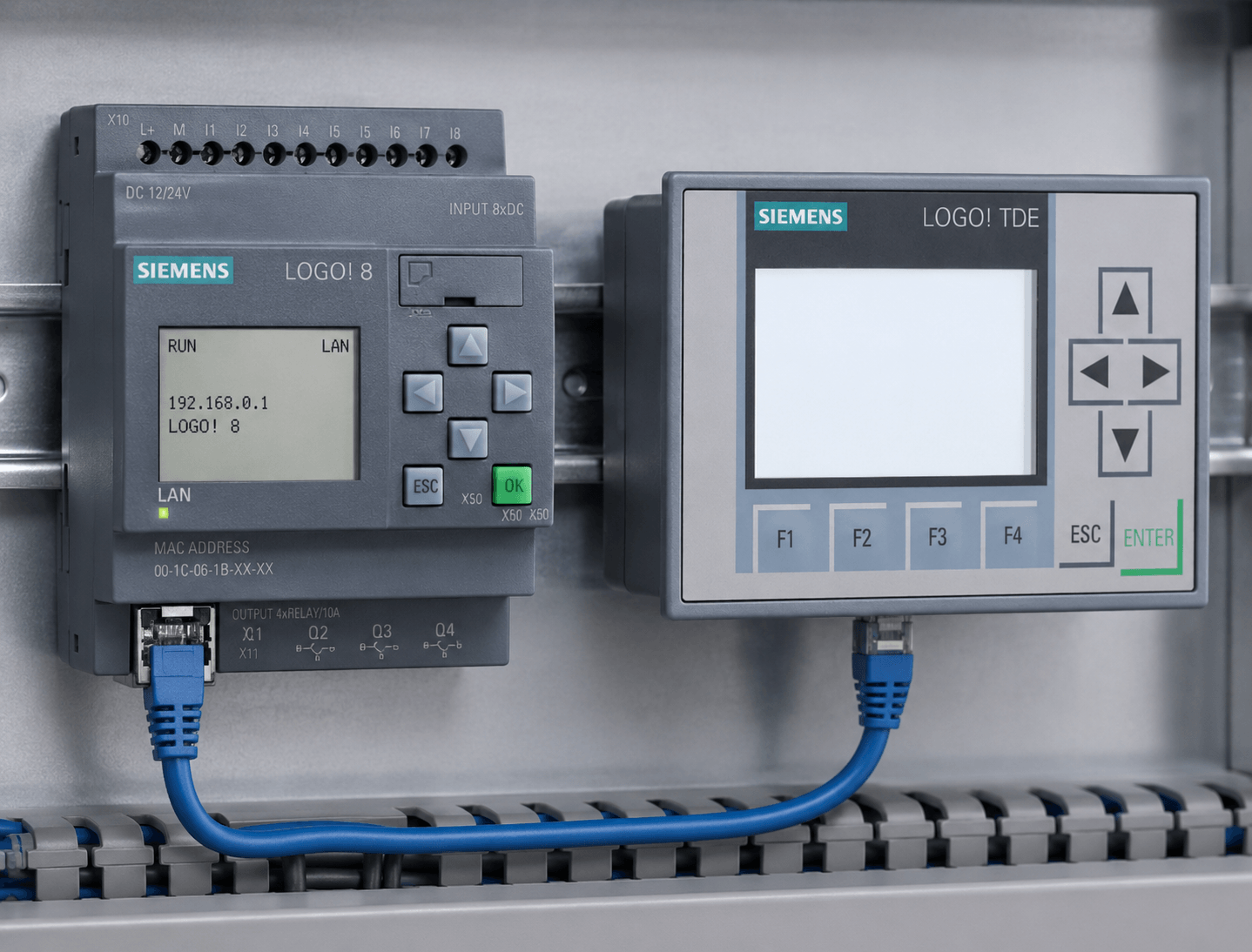
Siemens LOGO! TDE Display: Complete Troubleshooting Guide for Connection Issues
Table of Contents
In industrial automation, the Siemens LOGO! TDE Display serves as a powerful and user-friendly text display extension for LOGO! 8 controllers. However, many users encounter Siemens LOGO! TDE Connection Issues during setup or operation.
At Vicpas Industrial Automation, we specialize in Siemens automation solutions. Explore our LOGO! TDE products
Common Siemens LOGO! TDE Connection Problems
- TDE Not Detected by LOGO! Soft Comfort
- IP Address Loss After Power Failure
- No Communication Between LOGO! Base and TDE
- Remote Access and Web Server Issues
- Ping Failure and Network Configuration Conflicts
Step-by-Step Troubleshooting Guide
1. Verify Physical Connections and Basic Setup
- Use a shielded CAT5 or better Ethernet cable.
- Connect the TDE directly to the LOGO! 8 base module or through a switch.
- Power supply: 12/24 VDC or 24 VAC (check polarity).
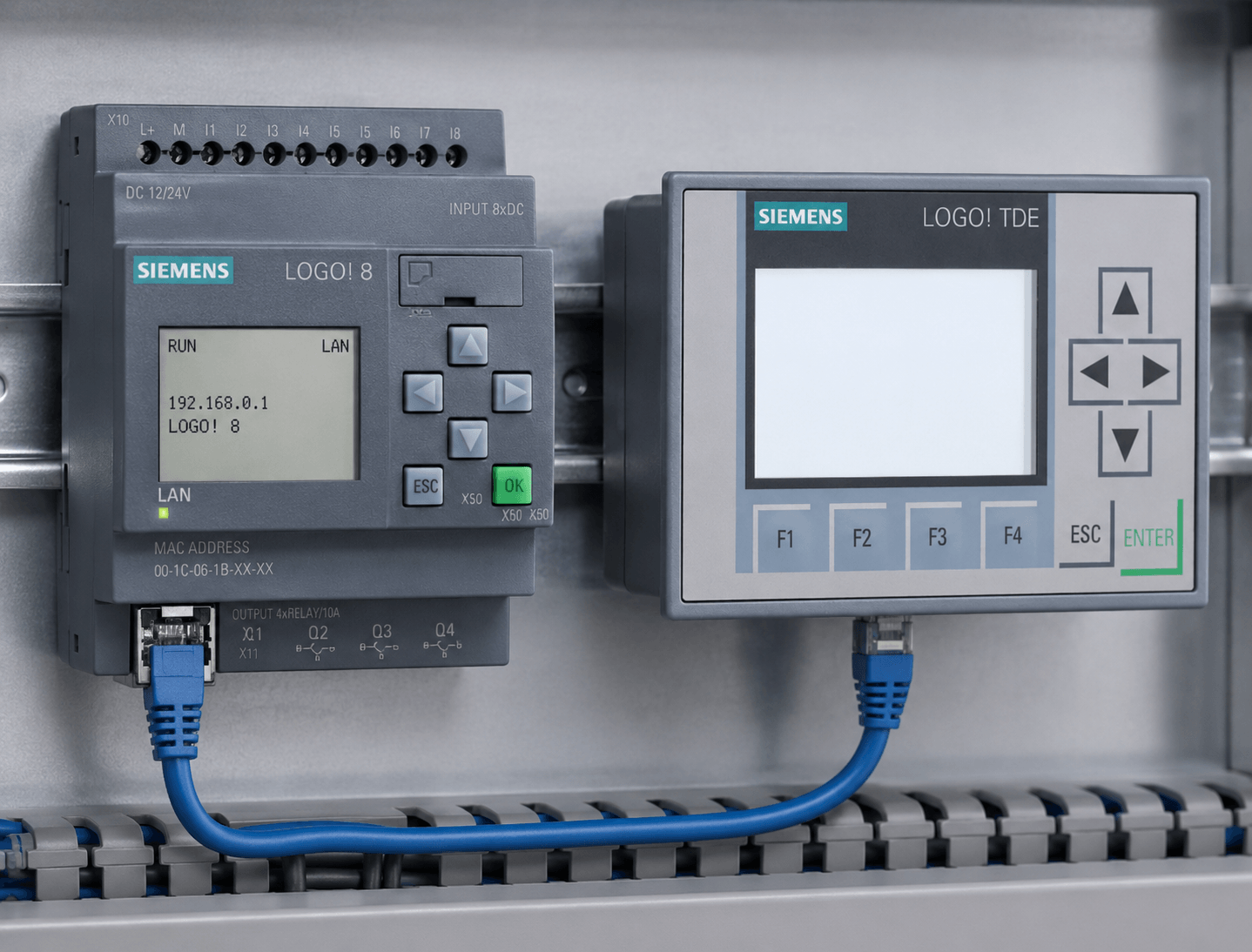
Siemens LOGO! TDE connected to LOGO! 8 controller
2. Check and Configure IP Addresses
- Default TDE IP: Often 192.168.0.2
- LOGO! Base default: Usually 192.168.0.3
- Set your PC to the same subnet (e.g., 192.168.0.x with subnet mask 255.255.255.0).
- Use the TDE menu: Network Configuration → Set IP Address.
Pro Tip from Vicpas: Always assign static IPs and document them in your control cabinet.
3. Test Connectivity
- Ping the TDE from your PC command prompt.
- Run network diagnostics in Windows.
- In LOGO! Soft Comfort, use the connection test tool (green bar indicates success).
4. Resolve Software Detection Issues
- Run LOGO! Soft Comfort as Administrator.
- Avoid IP conflicts with other Siemens tools.
- Set PC network adapter to match the correct subnet.
5. Fix IP Loss After Power Outages
- Remove SD card and configure TDE independently.
- Verify program file on SD card does not overwrite network settings.
- Consider installing a SITOP UPS for critical applications.
6. Enable Web Server and Remote Access (Securely)
- Avoid direct port forwarding for security reasons.
- Use VPN solutions (e.g., Tailscale, WireGuard) for remote monitoring.
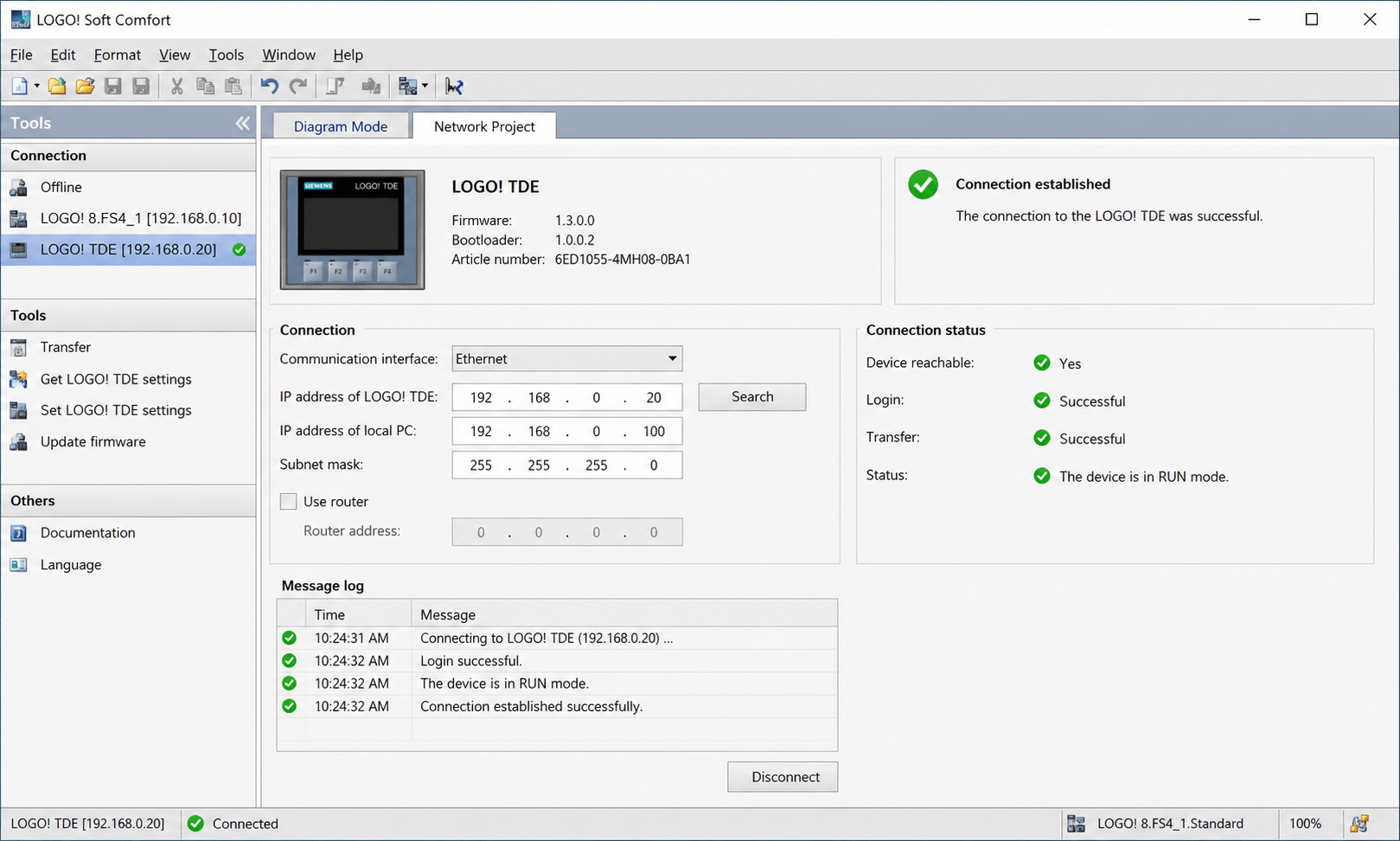
Successful connection in LOGO! Soft Comfort
Best Practices for Reliable Operation
- Enable password protection in Operator Mode.
- Use industrial-grade SD cards.
- Keep firmware updated.
- Document all network settings.
Why Choose Vicpas for Siemens LOGO! TDE?
As a trusted partner in industrial automation, Vicpas offers authentic Siemens LOGO! TDE Displays, expert technical support, competitive pricing, and fast delivery.
Browse LOGO! TDE Collection →
Learn About Vicpas
Need Further Assistance?
Contact Vicpas today for personalized troubleshooting support. Our engineers have extensive experience with Siemens LOGO! systems.
References
- Siemens Forum - LOGO! 8 Communication with TDE
- Reddit r/PLC - Remote Access Siemens LOGO! TDE
- Siemens Forum - LOGO! Soft Comfort Detection Issues
- Siemens Forum - LOGO! TDE Problem
- DigiKey Forum - Siemens LOGO! Initial Network Connection
- Siemens Industry Support - Diagnosing LOGO! Errors
- Siemens Forum - LOGO! 8 TDE Connection Failed
- Industrial Monitor Direct - IP Address Loss Fix