Siemens S7-300 PLC Troubleshooting and Diagnostics
- Share
- Issue Time
- Apr 13,2026
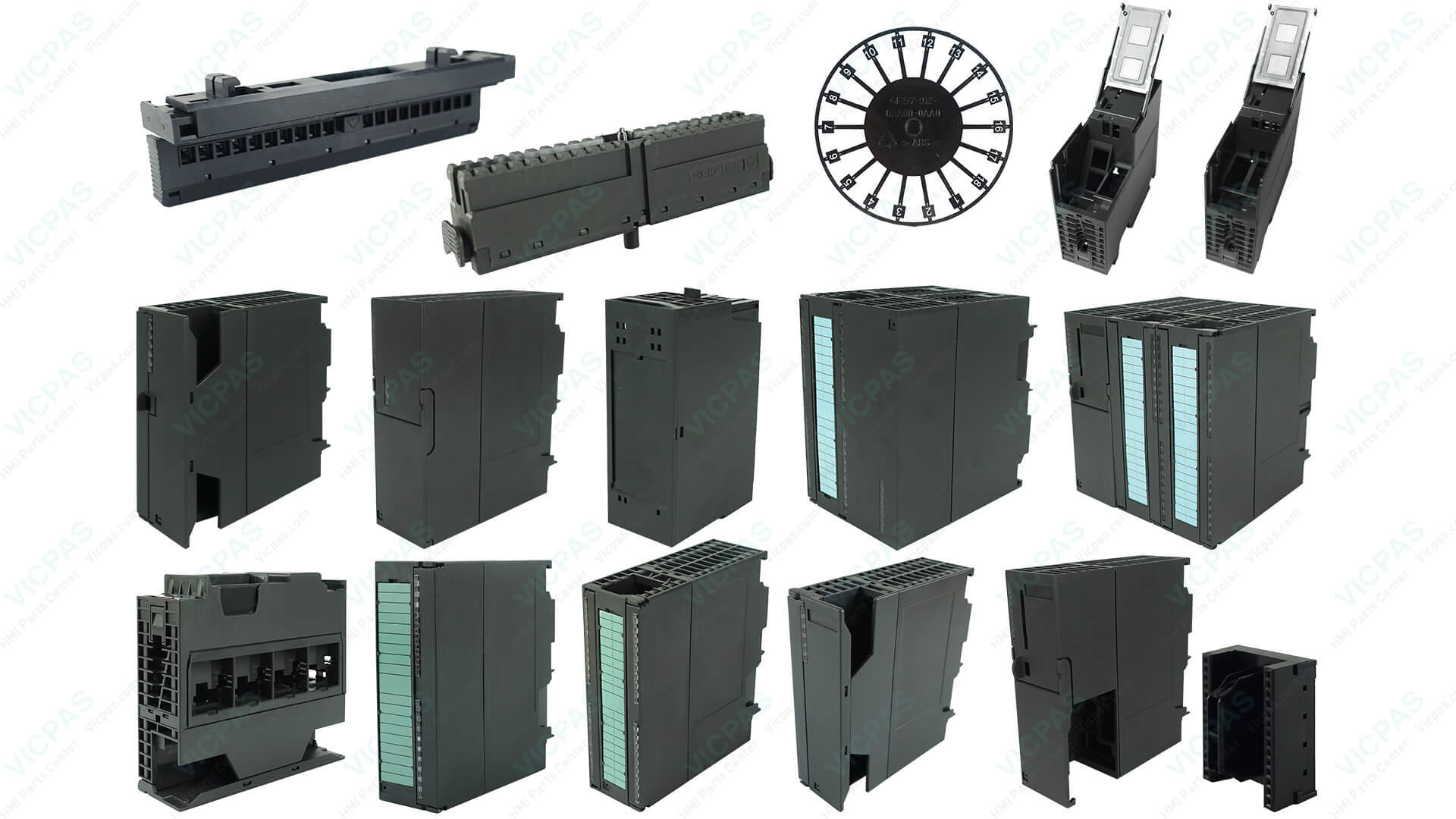
Siemens S7-300 PLC Troubleshooting and Diagnostics: Complete Guide to LED Errors, Diagnostic Buffer, and Module Repair
Table of Contents
In the world of industrial automation, the Siemens S7-300 PLC remains one of the most widely deployed and reliable control systems for manufacturing, process control, and machinery applications. However, after years of service, common issues such as a steady SF LED, flashing BUSF, communication failures, or unresponsive I/O modules can bring production lines to a halt.
This comprehensive guide draws from Siemens official hardware manuals, STEP 7 best practices, and real troubleshooting discussions from PLC forums and technical communities. It provides clear, step-by-step instructions to help you quickly diagnose and resolve S7-300 faults.
At VICPAS, a leading supplier with over 20 years of experience in industrial automation spare parts, we specialize in high-quality replacement plastic housings, cases, and enclosures for Siemens SIMATIC S7-300 modules. Our compatible repair parts help maintenance teams restore systems rapidly and cost-effectively without replacing entire modules.
1. Understanding S7-300 Status and Error LEDs (First-Line Diagnostics)
The LEDs on the CPU and I/O modules offer the fastest visual indication of problems. According to the Siemens S7-300 Hardware Installation Manual:
- SF (System Fault – red): Indicates a hardware or software error in the CPU or a module (e.g., module fault, diagnostic interrupt, or blown fuse).
- BUSF / BUSF1 / BUSF2 (Bus Fault – red): Signals a PROFIBUS or PROFINET communication issue, such as missing slaves, cable problems, or incorrect termination.
- RUN (green) / STOP (yellow): Shows operating mode; flashing may indicate startup issues or memory reset requests.
- DC 5V / DC 24V: Confirms power supply status.
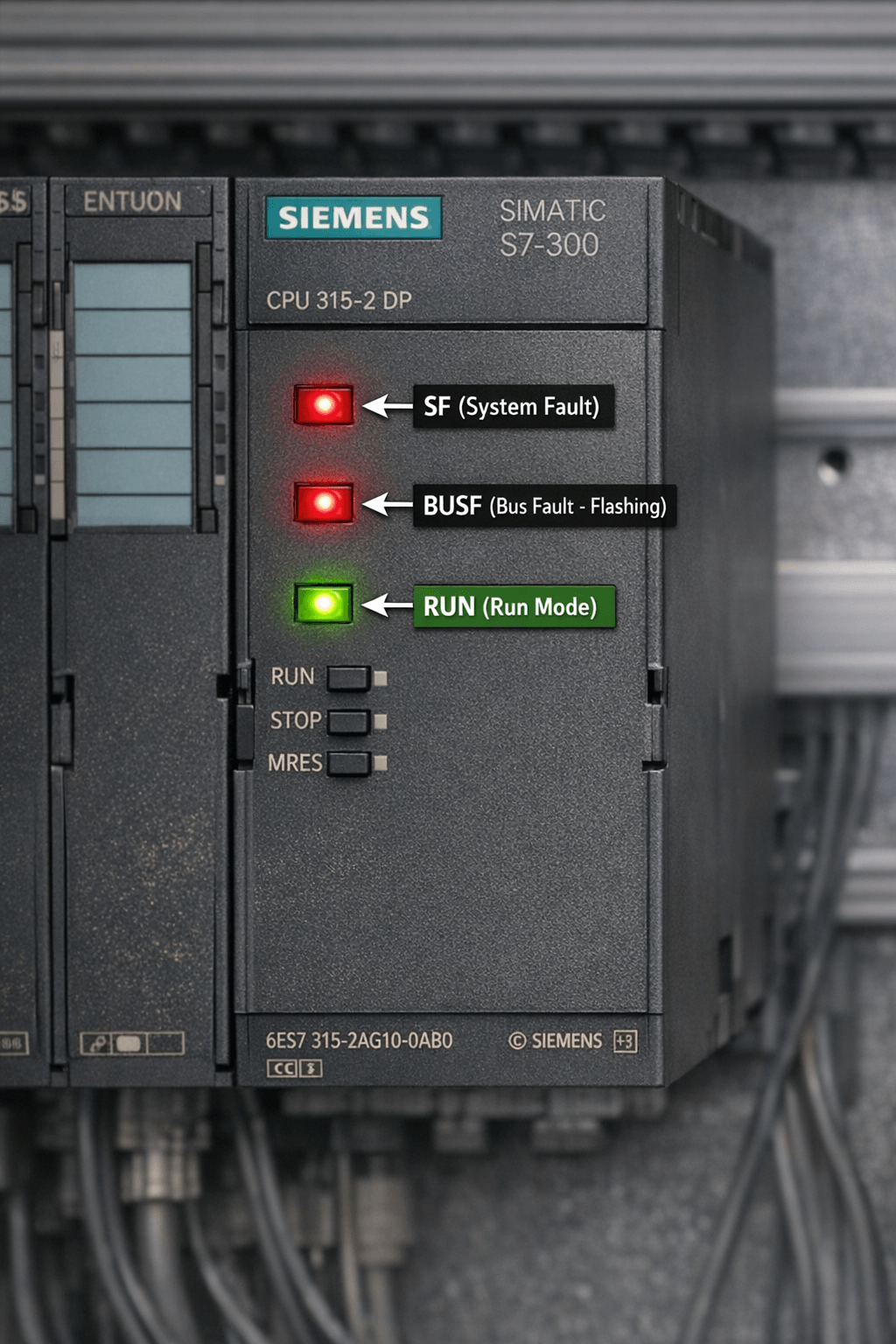
Figure 1: Siemens S7-300 CPU front panel with red SF LED and BUSF LED clearly visible
Pro Tip
Always start with LED observation, then connect via STEP 7 (Simatic Manager or TIA Portal) to read the diagnostic buffer.
2. Essential Diagnostic Tools in STEP 7
The Diagnostic Buffer is the most powerful built-in tool in the S7-300. It records up to 100 recent events with timestamps and error codes.
How to Access It
- Go online with the PLC in Simatic Manager.
- Right-click the CPU → Module Information → Diagnostic Buffer.
- Review event IDs (e.g., 16#3576 often relates to PROFIBUS slave issues).
Other key methods include:
- SFC51 (RDSYSST): Reads detailed module diagnostics, especially useful for ET 200 distributed I/O or detecting wire breaks and missing power.
- Report System Error: Enable this in HW Config (CPU → Options) to automatically generate diagnostic FB blocks and alarms for HMI.
- Module Information: Provides firmware version, cycle times, and specific fault details.
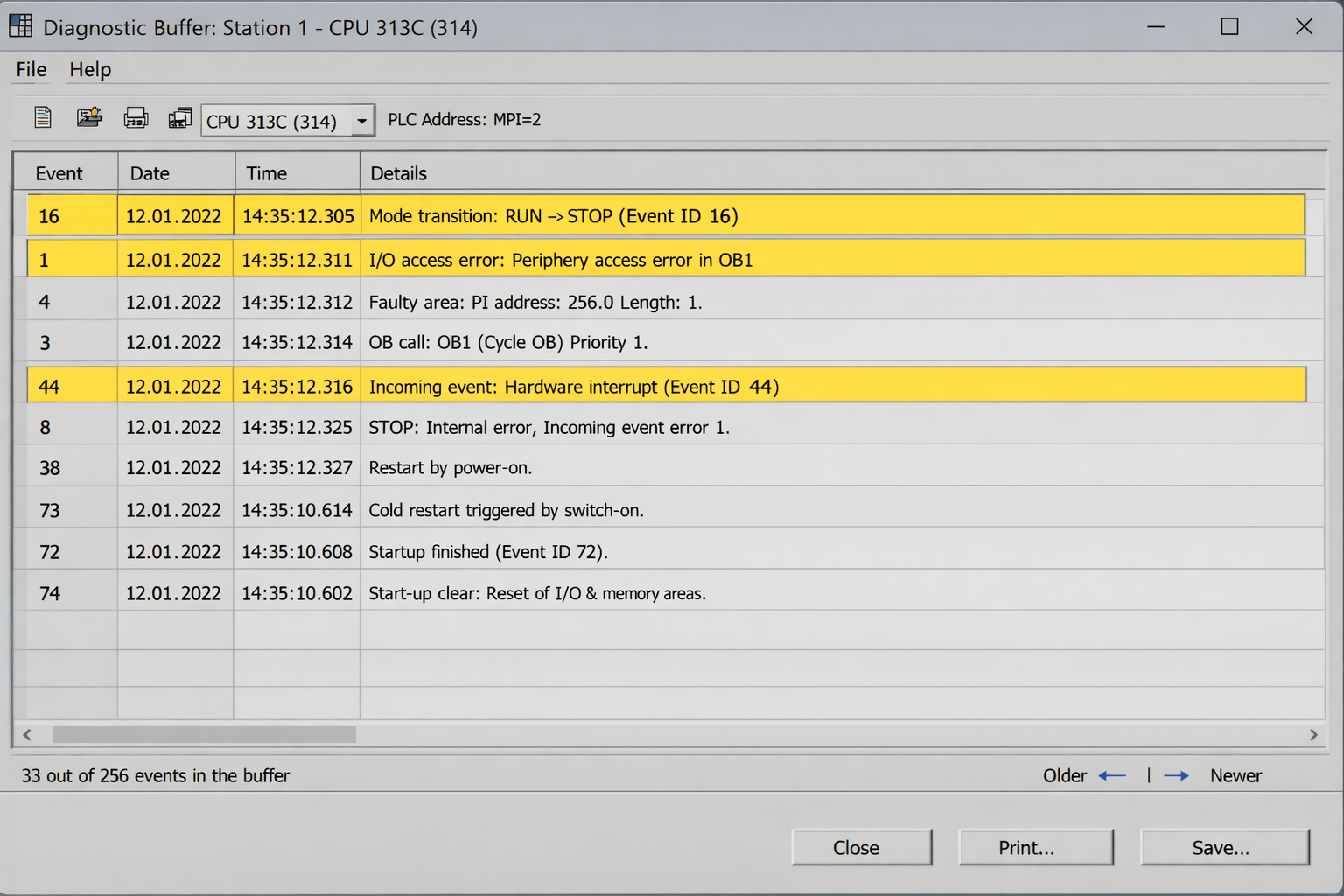
Figure 2: STEP 7 Simatic Manager Diagnostic Buffer displaying fault entries and timestamps
VICPAS recommends enabling the CPU’s integrated web server for remote access to diagnostics when possible.
3. Step-by-Step Troubleshooting Guide
3.1 PROFIBUS/PROFINET Communication Failures (BUSF Issues)
Common causes: damaged cables, address conflicts, missing termination resistors, firmware mismatches, or lightning damage.
Troubleshooting steps:
- Check Online & Diagnostics for specific error codes.
- Clear the diagnostic buffer and restart the PLC.
- Verify cables, termination (resistors required at both ends), and perform Ping tests.
- Scan slaves using a CP5611 card or S7 PC Adapter.
- Update firmware and ensure device compatibility.
Real-world case (from PLC forums): After a lightning strike, a plant experienced constant BUSF. Diagnosis revealed lost slaves; replacing the damaged PROFIBUS port and standardizing cable routing resolved the issue.
3.2 Digital Output Module SF LED On (Example: 6ES7322-1FH00)
Even when no alarm appears in diagnostics, the group fuse (2A fast-acting per 8 channels) may be blown.
Practical checks:
- Open the front cover and visually inspect the fuse compartment.
- Test fuses with a multimeter.
- Check for short circuits or overloads on the outputs.
- If the fuse is intact but SF persists, the module’s internal monitoring circuit may be faulty — replace the module.
Prevention: Add flyback diodes to inductive loads and keep output current below 0.5 A per channel. VICPAS supplies compatible plastic housings and covers for 6ES7322 series modules, allowing quick field repairs.
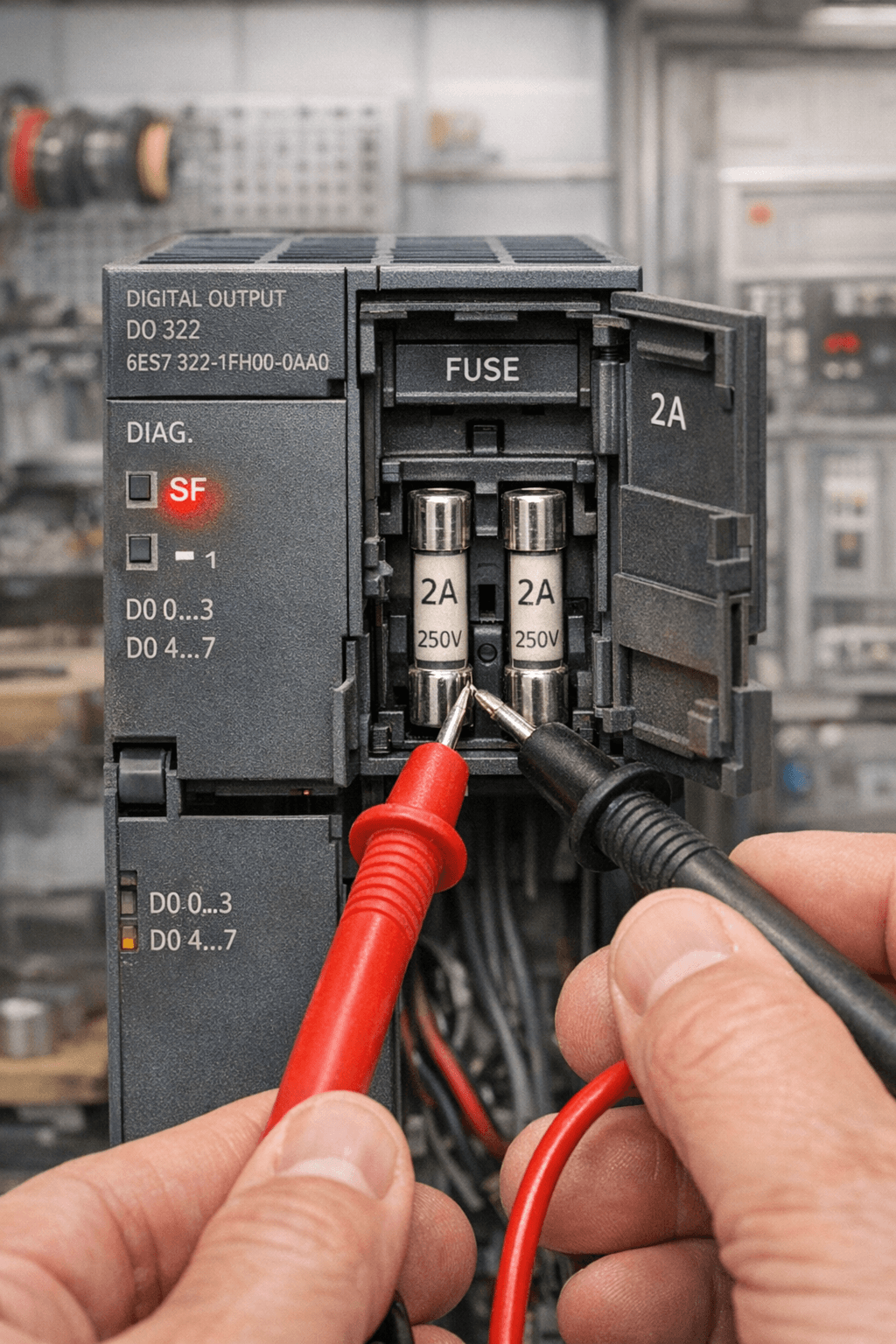
Figure 3: S7-300 6ES7322-1FH00 digital output module showing SF LED fault and fuse compartment
3.3 Analog Signal Failures and Rack-Level Issues
SF + BF flashing with all analog signals lost often points to IM module power problems or issues with the last AI card.
Solutions:
- Use Module Information to review the diagnostic buffer.
- Measure analog output currents with a multimeter.
- Inspect IM module power supply and the final analog card.
3.4 Advanced Module Diagnostics with SFC51
For detailed I/O faults such as wire breaks or power loss, use SFC51. On PROFINET systems, the PNIODIAG library can generate ready-to-use HMI diagnostic templates.
4. How VICPAS Supports Your S7-300 Maintenance
Diagnosis is only the first step — hardware damage often requires fast replacement parts. VICPAS is your trusted partner for Siemens S7-300 PLC repair.
We stock a wide selection of brand-new and compatible plastic cases, covers, shells, and enclosures for popular modules.
Our advantages:
- In-stock items ship the same day
- Low MOQ — even single pieces for urgent repairs
- 365-day warranty on all parts
- Global express shipping via DHL/UPS
- Competitive factory pricing with full technical support
These durable housings withstand temperatures from –25°C to +60°C and meet demanding industrial conditions, helping you restore modules quickly and extend system life.
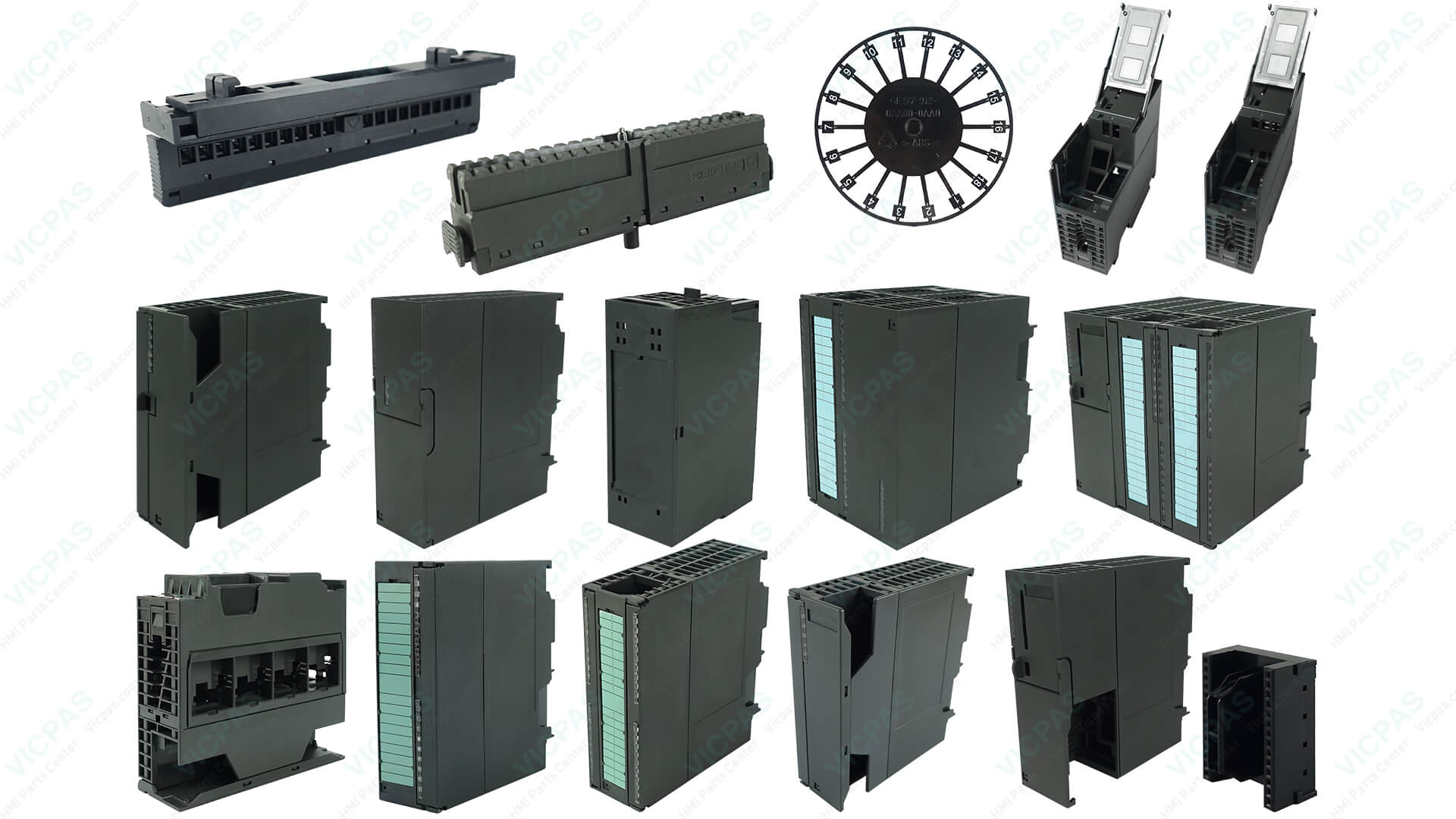
Figure 4: VICPAS Siemens S7-300 PLC plastic cases and high-quality repair parts
Browse our complete Siemens SIMATIC S7-300 repair parts collection: View Products
Contact us for a fast quote: sales@vicpas.com or call +86-13922741901
5. Final Recommendations
Mastering Siemens S7-300 PLC troubleshooting and diagnostics can resolve up to 80% of issues within 30 minutes. Best practices include regular diagnostic buffer checks, proper cabling standards, and keeping spare parts on hand.
Whether you face SF LED alarms, BUSF communication errors, or module failures, VICPAS provides reliable, high-quality solutions to minimize downtime and keep your production running smoothly.
Need help with your Siemens S7-300 PLC?
Contact our technical team:
sales@vicpas.com
or call +86-13922741901
References
- Siemens SIMATIC S7-300 Hardware Installation Manual (IHB) – Download PDF
- PLC Talk Forum Discussion on SFC51 Module Diagnostics – View Thread
- Reddit r/PLC – S7-300 SF and BF LED Problem – View Discussion
- PLC Talk Forum – Troubleshooting Siemens S7-300 PROFIBUS BUSF Failure – View Thread
- Industrial Monitor Direct – S7-300 6ES7322-1FH00 SF LED Fault Troubleshooting – Read Article
- Siemens Support Forum – S7-300 Error Diagnostics – View Official Post
- Control.com Forum – Reading the Diagnostic Status for S7-300 – View Thread