Siemens AOP30 Troubleshooting Guide: Common Issues, Faults and Quick Fixes
- Share
- Issue Time
- Mar 23,2026
Siemens AOP30 Troubleshooting Guide: Common Issues, Faults and Quick Fixes
Table of Contents
- What Is the Siemens AOP30 and Why Issues Occur?
- Common Issue 1: Fault F1910 – PB Setpoint Timeout
- Common Issue 2: AOP30 Operation Screen Not Showing
- Common Issue 3: AOP30 Shows “????” (Question Marks)
- Common Issue 4 & 5: Firmware Update / Downgrade Problems & Communication Issues
- Common Issue 6: CU320 + AOP30 Menu Stuck / Freeze Issue
- Common Issue 7: Password / Parameter Lock Issue
- General Troubleshooting Tips (Official + PLC Community Best Practices)
- When to Replace Your Siemens AOP30 – Choose VICPAS
- Conclusion
- References
Are you facing issues with your Siemens AOP30 Advanced Operator Panel on SINAMICS G130, G150, S120 or CU320 drives? The Siemens AOP30 is a powerful graphical operator panel (part numbers including 6SL3055-0AA00-4CA1 A5E00392920, 6SL3055-0AA00-4CA2 A5E00488530, 6SL3055-0AA00-4CA3 A5E00701778, 6SL3055-0AA00-4CA4 A5E30079609, 6SL3055-0AA00-4CA5 A5E30245098 and 6SL3055-0AA00-4CR0) used for local control, parameterisation and diagnostics.
This comprehensive guide draws from official Siemens documentation (SINAMICS G130 AOP30 Operating Instructions), Siemens Industry Forum discussions, and real-world PLC troubleshooting approaches to help you quickly diagnose and fix the most common Siemens AOP30 problems. Whether it's Fault F1910, blank screens, “????” displays, firmware issues, menu freezes, or parameter locks, we cover detailed step-by-step solutions based on verified sources.
At VICPAS (a trusted HMI and operator panel parts specialist with over 20 years of experience), we supply high-quality replacement components for the Siemens AOP30. If hardware failure is the root cause (e.g., damaged membrane keypad, LCD failure, or battery issues), our fully tested kits offer fast, cost-effective fixes with a 1-year warranty and worldwide shipping.
Explore our Siemens AOP30 range: here
What Is the Siemens AOP30 and Why Issues Occur?
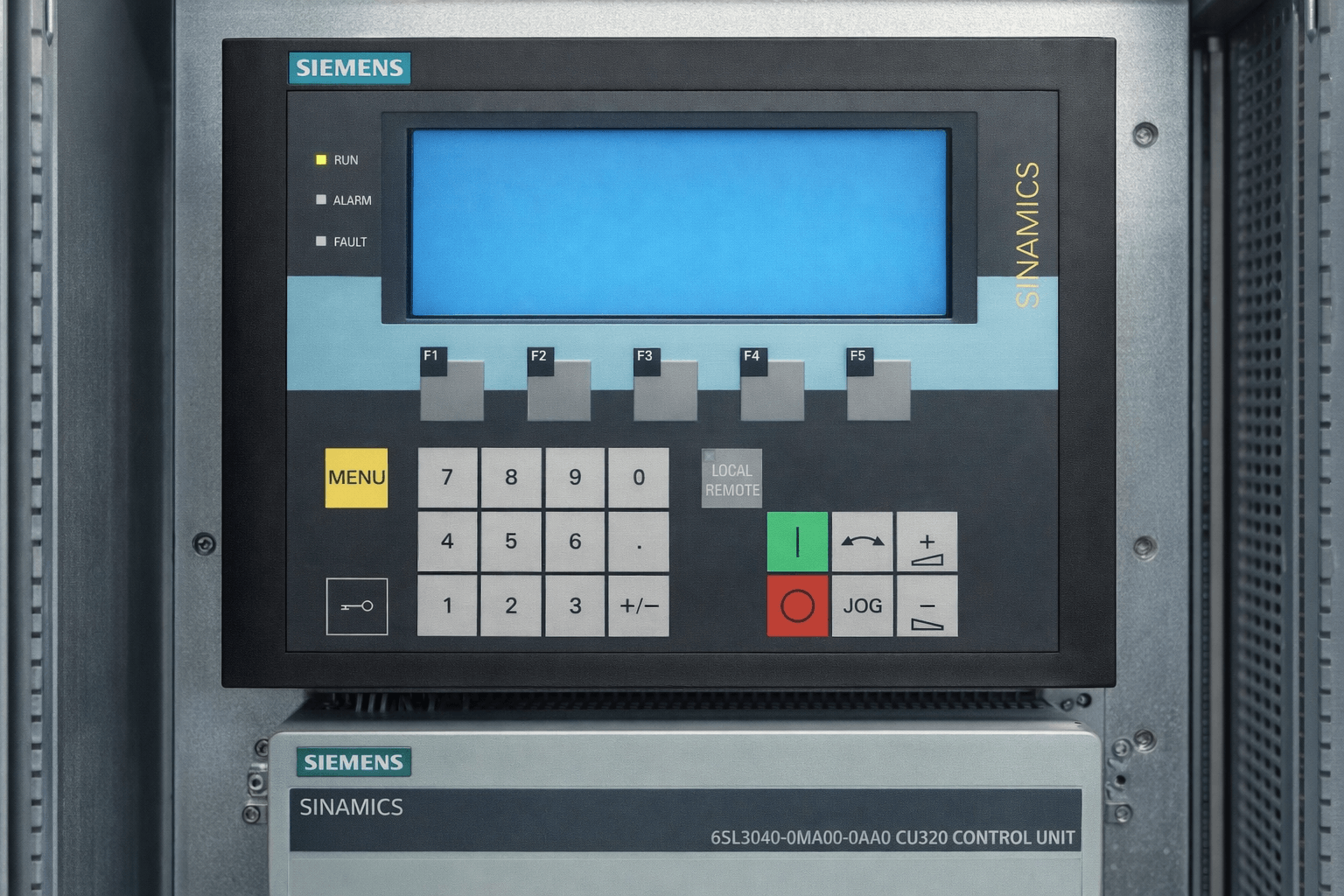
The Siemens AOP30 connects via RS232 (X540) to the CU320 or similar Control Units using PPI protocol. It provides menu navigation, fault display, parameter editing, custom operation screens, and LOCAL mode control. Common problems arise from:
- Firmware/database version mismatches (check r0018 for drive software status)
- Communication cable issues (RS232 polarity, shielding, max 10 m length)
- Parameter lock settings (operator input inhibit or parameterization inhibit active)
- Battery or display configuration errors (low battery ≤2.45V triggers warnings)
- Hardware wear on the membrane keypad/LCD after prolonged use
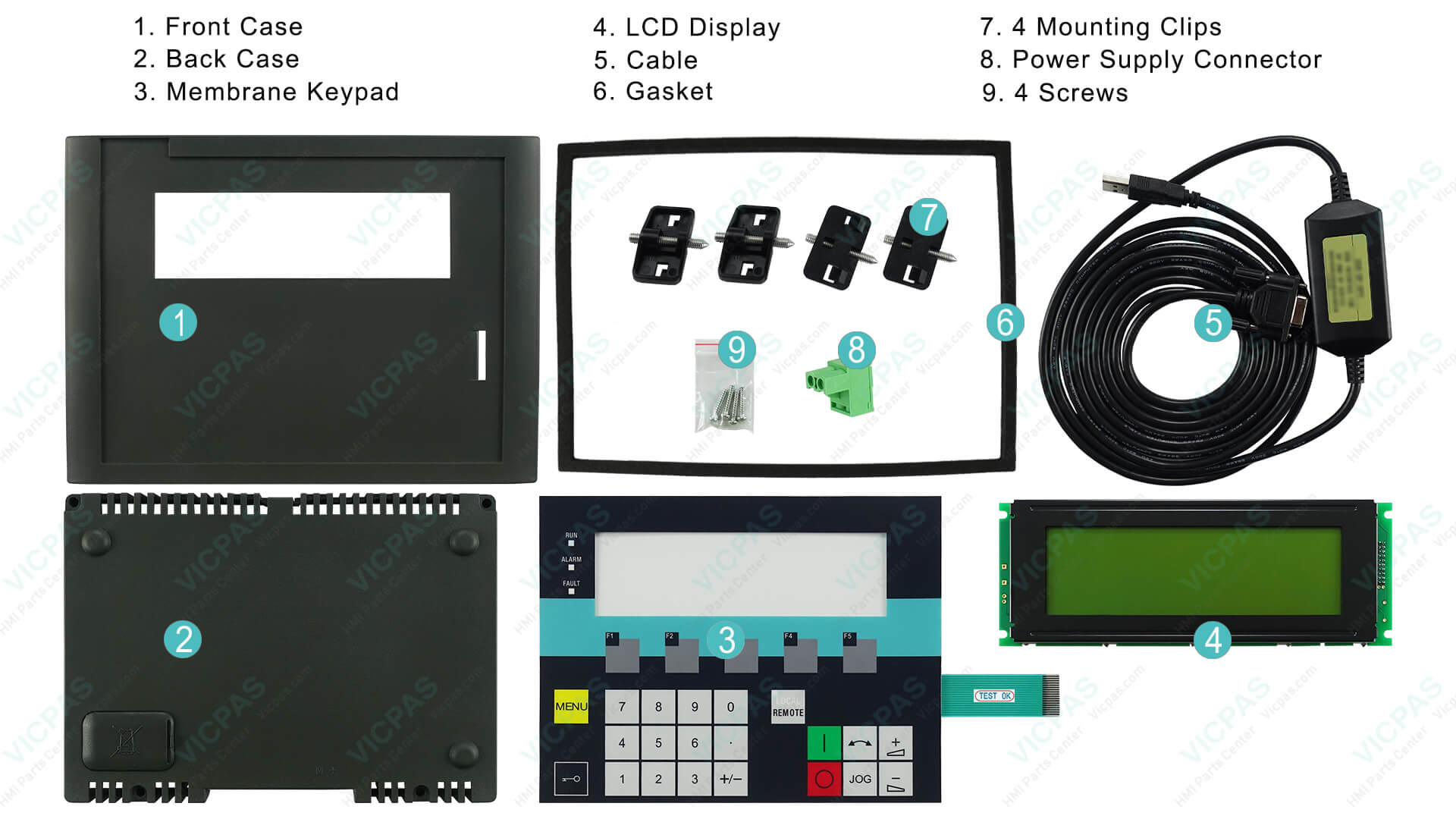
VICPAS stocks complete replacement kits (membrane switch + LCD + housing + cable + gasket) for all listed Siemens AOP30 models, ensuring minimal downtime and compatibility with latest firmware.
Common Issue 1: Fault F1910 – PB Setpoint Timeout
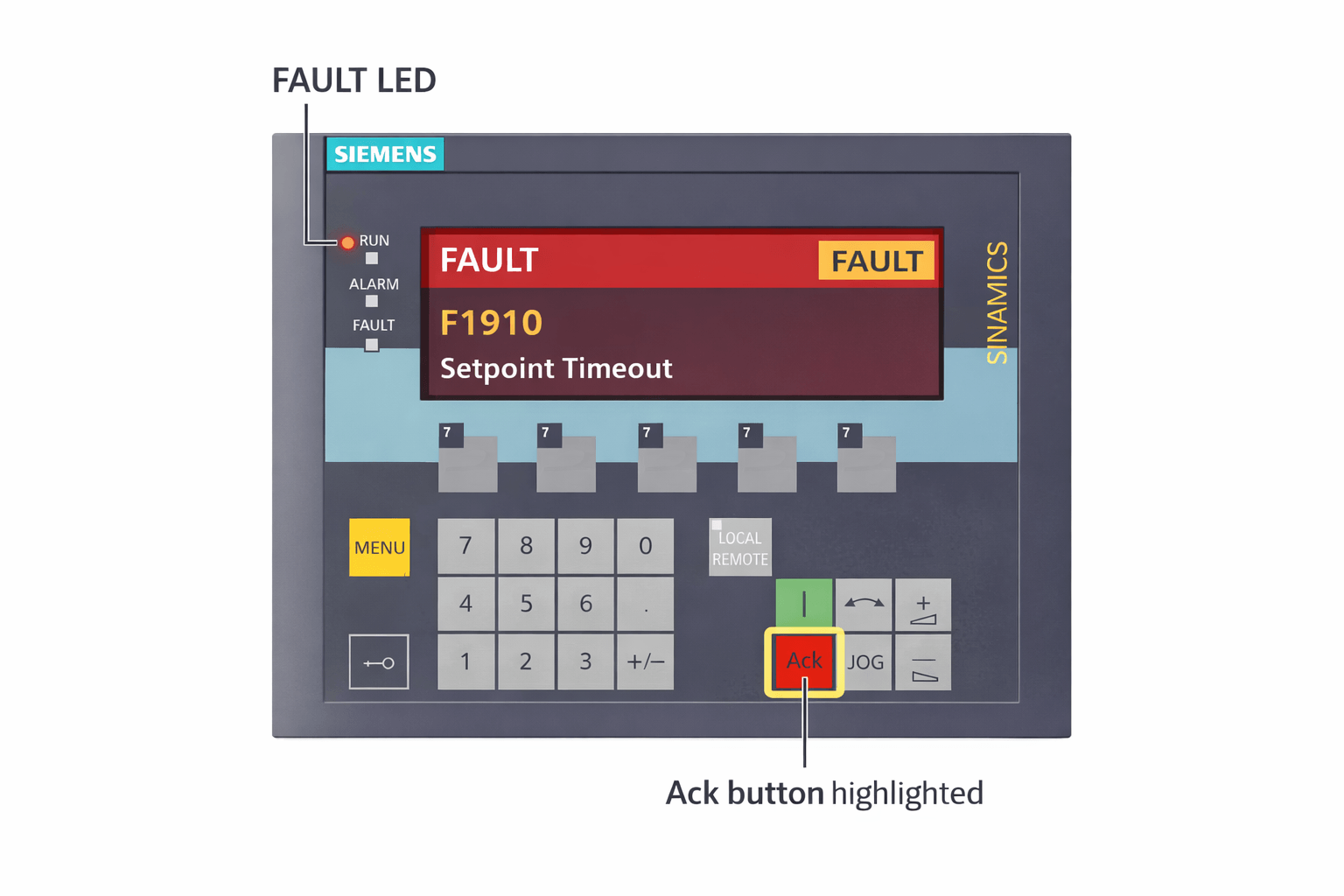
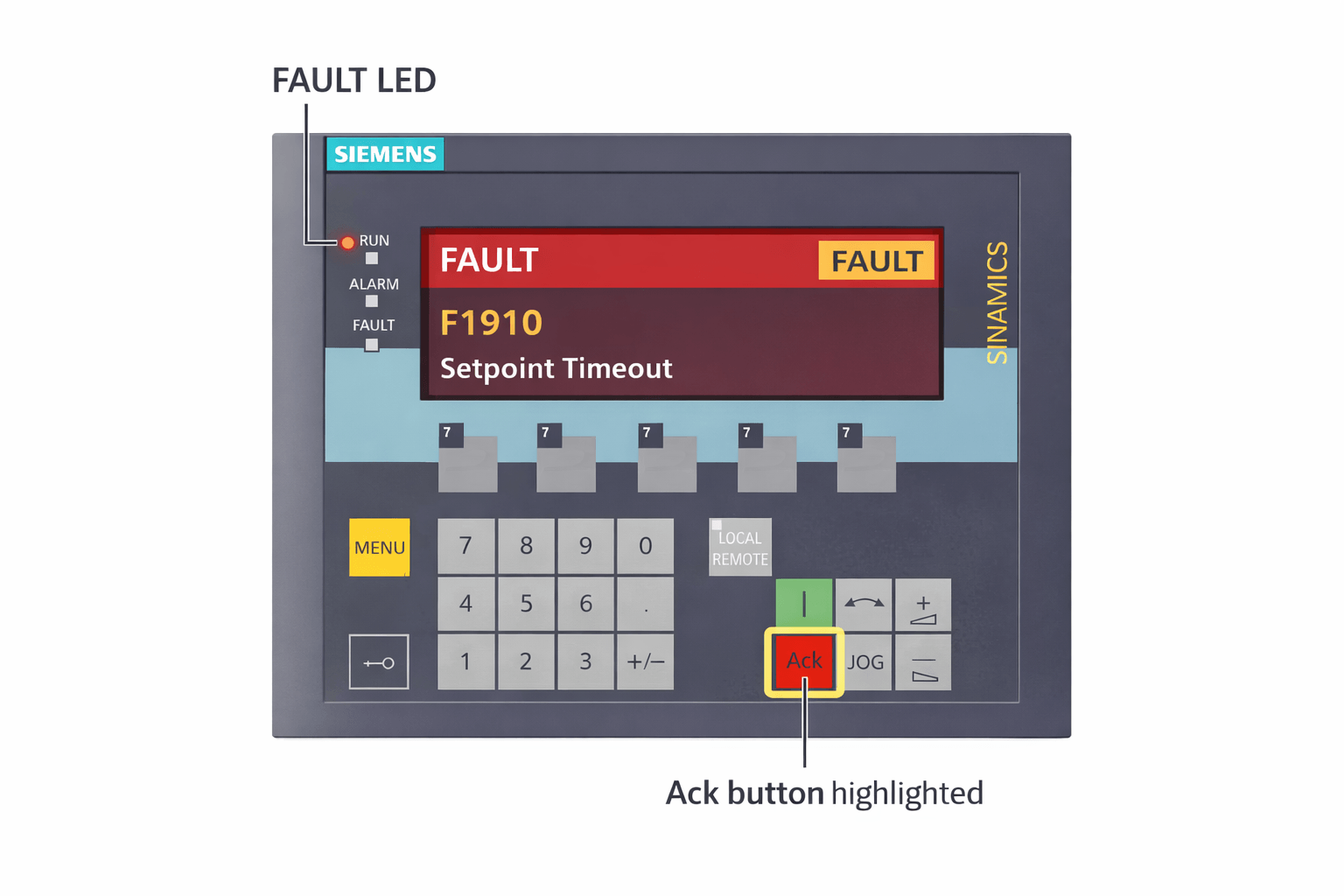
Symptoms: Red FAULT LED lights up; AOP30 shows “F1910 PB Setpoint Timeout” (often in LOCAL mode with CU320/G130, recurring every few minutes or after PLC off).
Causes: Control word bit 10 drops from high to low (e.g., PLC switched off, Profibus timeout, fieldbus communication loss during startup or migration).
Quick Fixes:
- Check PLC status and ensure cyclic communication is active (verify Profibus cable, terminator resistor).
- Acknowledge the fault using the F5 (Ack) key on the AOP30.
- In STARTER software or parameters, change F1910 from fault to message (if acceptable in your application – consult drive manual).
- Power cycle the drive after fixing the root communication issue.
If the fault persists and indicates deeper hardware problems, replace the Siemens AOP30 panel with a VICPAS kit – many engineers choose our 6SL3055-0AA00-4CR0 full assembly for reliable restoration.
Common Issue 2: AOP30 Operation Screen Not Showing
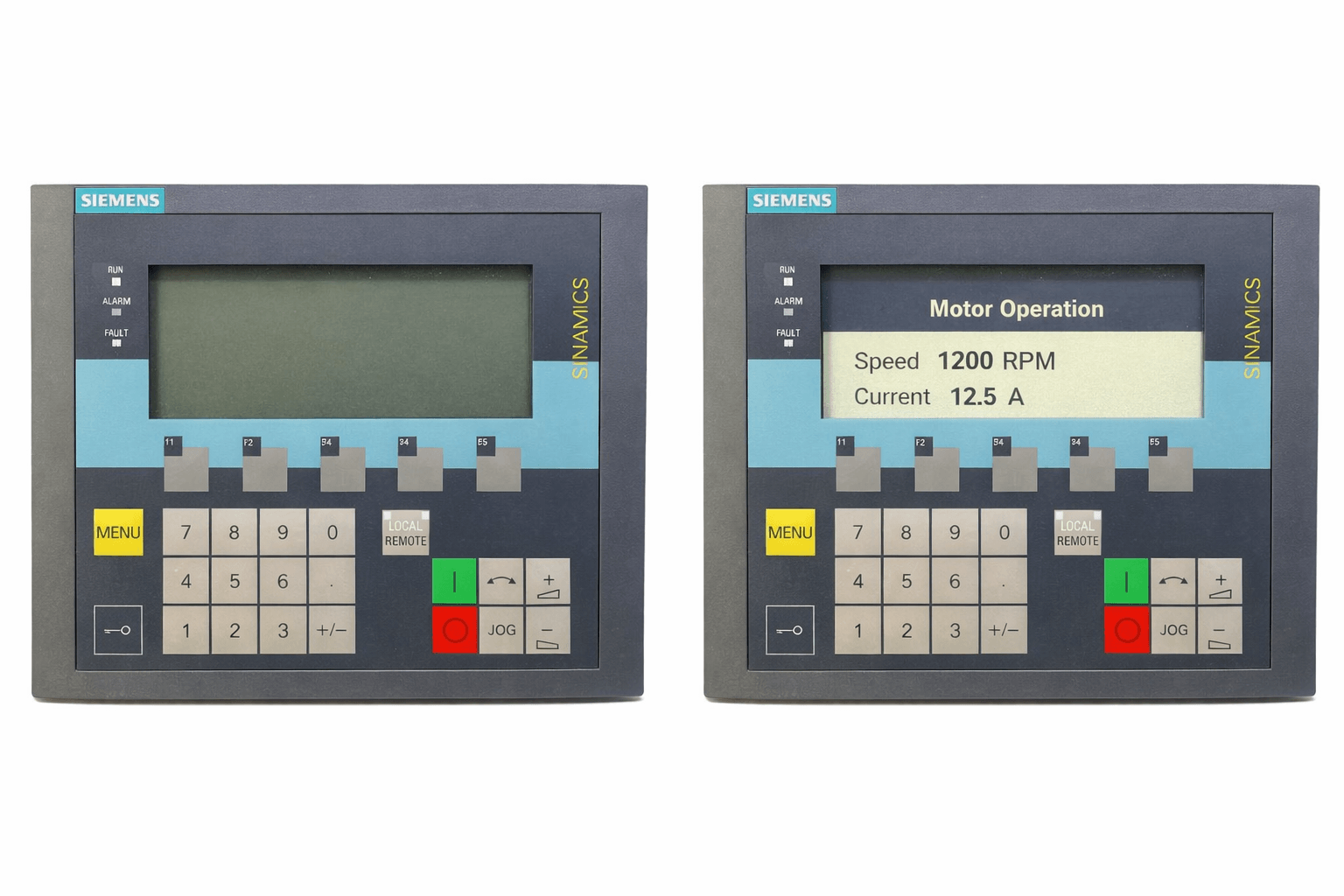
Symptoms: Only the parameterization/menu screen appears; no custom operation screen with speed, current, status values, or bar displays.
Causes: Operation screen not defined during commissioning; AOP30 not fully linked to the drive object (e.g., VECTOR); display configuration error.
Quick Fixes (per official AOP30 manual):
- Press MENU → Commissioning/Service → AOP settings → Define operation screen.
- Select desired signals (e.g., speed normalised to p2000 = 100%) and save permanently (long-press OK >1s).
- Restart the AOP30 or perform power cycle.
VICPAS Tip: If the display hardware is failing (blank, unresponsive, or partial failure), our replacement LCD + membrane kits for 6SL3055-0AA00-4CA1 A5E00392920 and 6SL3055-0AA00-4CA4 A5E30079609 solve this permanently.
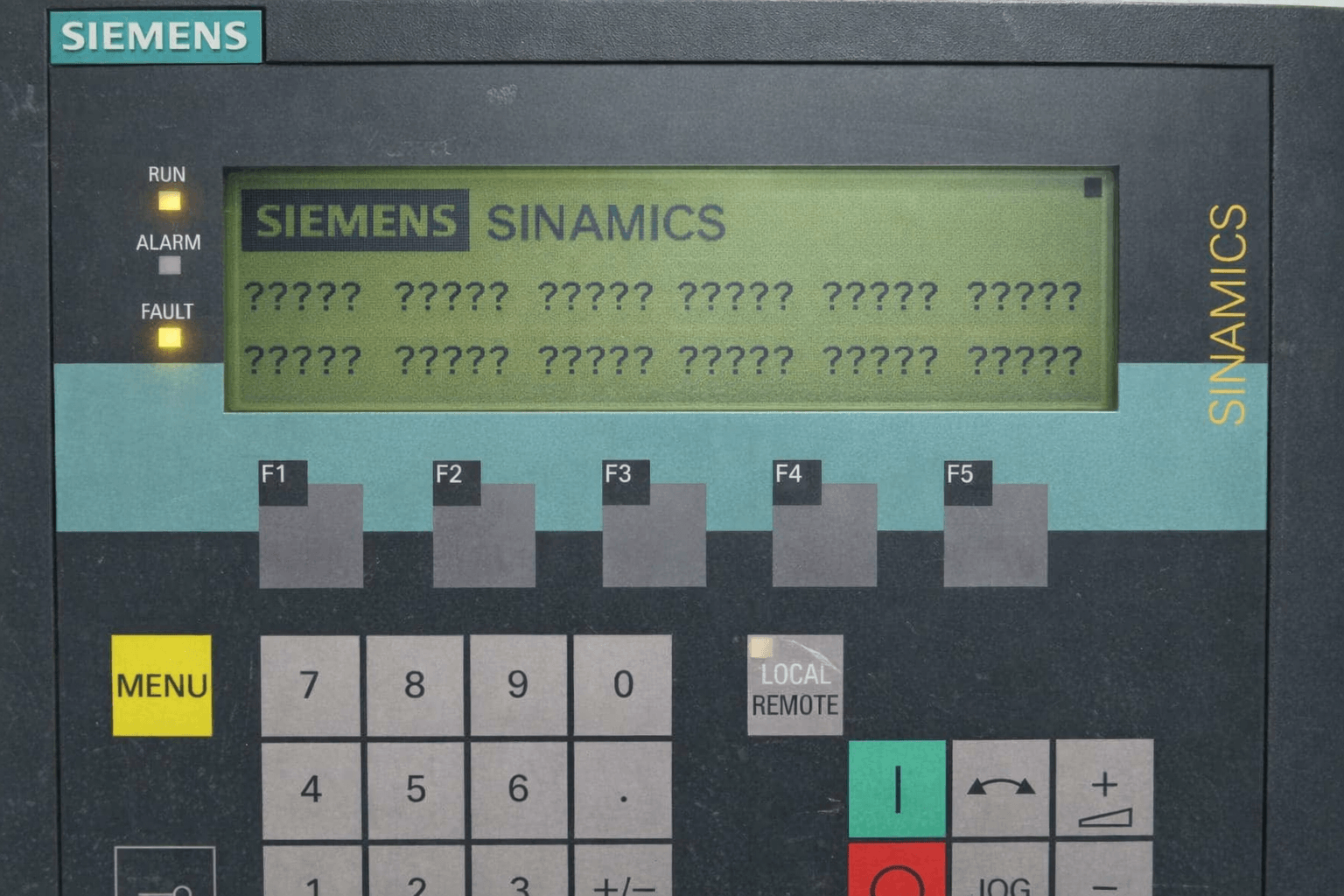
Common Issue 3: AOP30 Shows “????” (Question Marks)
Symptoms: Display shows “????” instead of parameter values, status, or actual values (common after firmware change or startup).
Causes: Firmware/database version mismatch between AOP30 and drive software; RS232 communication error (wrong cable polarity, loose connection, shield grounding); corrupted database.
Quick Fixes:
- Check AOP software version and database (MENU → Commissioning/Service → AOP diagnostics).
- Update firmware using Siemens LOAD_AOP30 tool + .H86 file via RS232 (power on while holding red OFF key).
- Verify cable: max 10 m, shielded, correct pins 2 & 5; clean connections or replace cable/connector.
- Perform AOP reset: Press MENU + OFF keys >2 seconds.
- As last resort, factory reset (if supported) or replace panel.
VICPAS supplies brand-new 6SL3055-0AA00-4CA2 A5E00488530 and 6SL3055-0AA00-4CA3 A5E00701778 membrane keypads + LCD kits that eliminate display corruption issues.
Common Issue 4 & 5: Firmware Update / Downgrade Problems & Communication Issues
Symptoms: Message “Firmware update required”, download fails, communication loss after downgrade, or “no connection to CU” error.
Causes: Version mismatch (AOP30 V2.3 vs drive firmware); LOAD_AOP30.exe not triggering; database structure mismatch (r0018).
Quick Fixes:
- Download official LOAD_AOP30 tool and matching firmware from Siemens support.
- Connect via RS232, power on while holding red OFF key to start manual load.
- For downgrade issues, ensure database matches; perform power cycle after update.
- Recheck battery voltage (>2.45 V); replace CR2032 if low.
Our 6SL3055-0AA00-4CA5 A5E30245098 kits at VICPAS include pre-tested panels ready for latest firmware compatibility.
Common Issue 6: CU320 + AOP30 Menu Stuck / Freeze Issue
Symptoms: Menu freezes (especially after “Key button locked” message); navigation unresponsive; keys locked after firmware update or battery change.
Causes: Operator input inhibit or parameterization inhibit activated; temporary software hang; electromagnetic interference.
Quick Fixes:
- Perform AOP reset: Press MENU + OFF >2 seconds.
- Go to MENU → Commissioning/Service → AOP settings → Control settings → disable operator input inhibit / parameterization inhibit (enter password if set).
- Acknowledge any pending alarms/faults with F5; check for loose connections or EMI sources.
Common Issue 7: Password / Parameter Lock Issue
Symptoms: Cannot change parameters; “Parameterization inhibit active” or “Operator input inhibit active” message; locked keys.
Causes: AOP30 control settings have input/parameterisation inhibit enabled (factory default for safety).
Quick Fixes (from official manual):
- Enter password if set (MENU → Commissioning/Service → AOP settings → Control settings).
- Deactivate lock/inhibit functions; long-press OK to save permanently to EEPROM.
- For expert level access, set access level to 3 in inhibit functions menu.
General Troubleshooting Tips (Official + PLC Community Best Practices)
- Acknowledge faults: Red FAULT LED → press F5 Ack; use F1 Help for cause/remedy details.
- Battery check: MENU → AOP diagnostics; replace CR2032 if ≤2 V (warnings at ≤2.45V / ≤2.30V).
- Display settings: Adjust brightness/contrast/language in AOP settings menu.
- Permanent save: Long-press OK (>1s) after changes or use Permanent parameter transfer to save to EEPROM (prevents "S" flashing).
- Advanced diagnostics: Use SINAMICS STARTER software for curve recorder, full parameter access, and BICO interconnections.
- Safety first: Always follow lockout/tagout procedures; never ignore safety-related faults.
When to Replace Your Siemens AOP30 – Choose VICPAS
If software fixes don't resolve the issue, hardware degradation (common after years of use) is likely the cause. VICPAS offers fully tested, brand-new or reconditioned replacement parts:
- 6SL3055-0AA00-4CA1 A5E00392920 – Membrane Keypad + LCD + HMI Case
- 6SL3055-0AA00-4CA2 / 4CA3 – Full Membrane Keypad + LCD + Outer Cover
- 6SL3055-0AA00-4CA4 / 4CA5 – Sinamics Operator Panel AOP30 Keypad + LCD + Plastic Body
- 6SL3055-0AA00-4CR0 – Complete Membrane Switch + LCD + Housing + Cable + Clips + Gasket
All kits come with 365-day/1-year warranty, small MOQ, and same-day shipping options for fast global delivery.
Shop directly: click
Company story & contact: VICPAS | sales@vicpas.com | +86-13922741901
Conclusion
Following this detailed Siemens AOP30 Troubleshooting Guide will help resolve most common issues quickly and safely. For persistent hardware problems (e.g., persistent display corruption, unresponsive keys, or repeated communication failures), trust VICPAS – your reliable partner for genuine-quality Siemens AOP30 replacement parts since over 20 years.
Keywords: Siemens AOP30, AOP30 Troubleshooting, SINAMICS AOP30 faults, F1910, AOP30 firmware update, AOP30 "????" display, AOP30 menu stuck, AOP30 password lock, AOP30 repair.
References
- Siemens Forum – AOP30 Fault F1910 (Setpoint Timeout)
- Siemens Forum – AOP30 Operation Screen Not Showing
- Siemens Forum – AOP30 Shows “????”
- Siemens Forum – AOP30 Firmware Update Problem
- Siemens Forum – AOP30 Firmware Downgrade / Communication Issue
- Siemens Forum – CU320 + AOP30 Menu Stuck Issue
- Siemens Forum – AOP30 Password / Parameter Lock Issue
- Siemens Official Manual – AOP30 Diagnostics & Fault Handling
- Reddit PLC Community – Siemens Drive Troubleshooting Approach
- Reddit PLC – Drive Fault Diagnosis (SINAMICS)
Written by the VICPAS Technical Team – Experts in Siemens HMI & Drive Operator Panels.
All advice based on official Siemens documentation, forum-verified solutions, and community best practices.
Always consult your specific drive documentation and qualified personnel for safety-critical applications.