Siemens OP77 Troubleshooting Guide: Alarms, Errors & Quick Fixes
- Share
- Issue Time
- Mar 2,2026
Siemens OP77 Troubleshooting Guide: Alarms, Errors & Quick Fixes
The Siemens OP77 (including OP77A and OP77B variants) is a reliable HMI operator panel widely used in industrial automation with S7-200 and S7-300 PLC systems. Over time, common issues like flashing alarm LEDs, communication failures, inability to reset or download programs, forgotten passwords, and hardware failures (display or keys) can cause costly downtime — but most can be resolved quickly with the right steps.
At VICPAS — with over 20 years of HMI repair experience — we stock more than 80,000 parts, offer 12-month warranties, same-day global shipping via DHL/UPS/FedEx/TNT, and direct drop-in replacements for Siemens OP77.
Table of Contents
1. Alarm & Error Indications (Alarm LED Behavior & Error Codes)
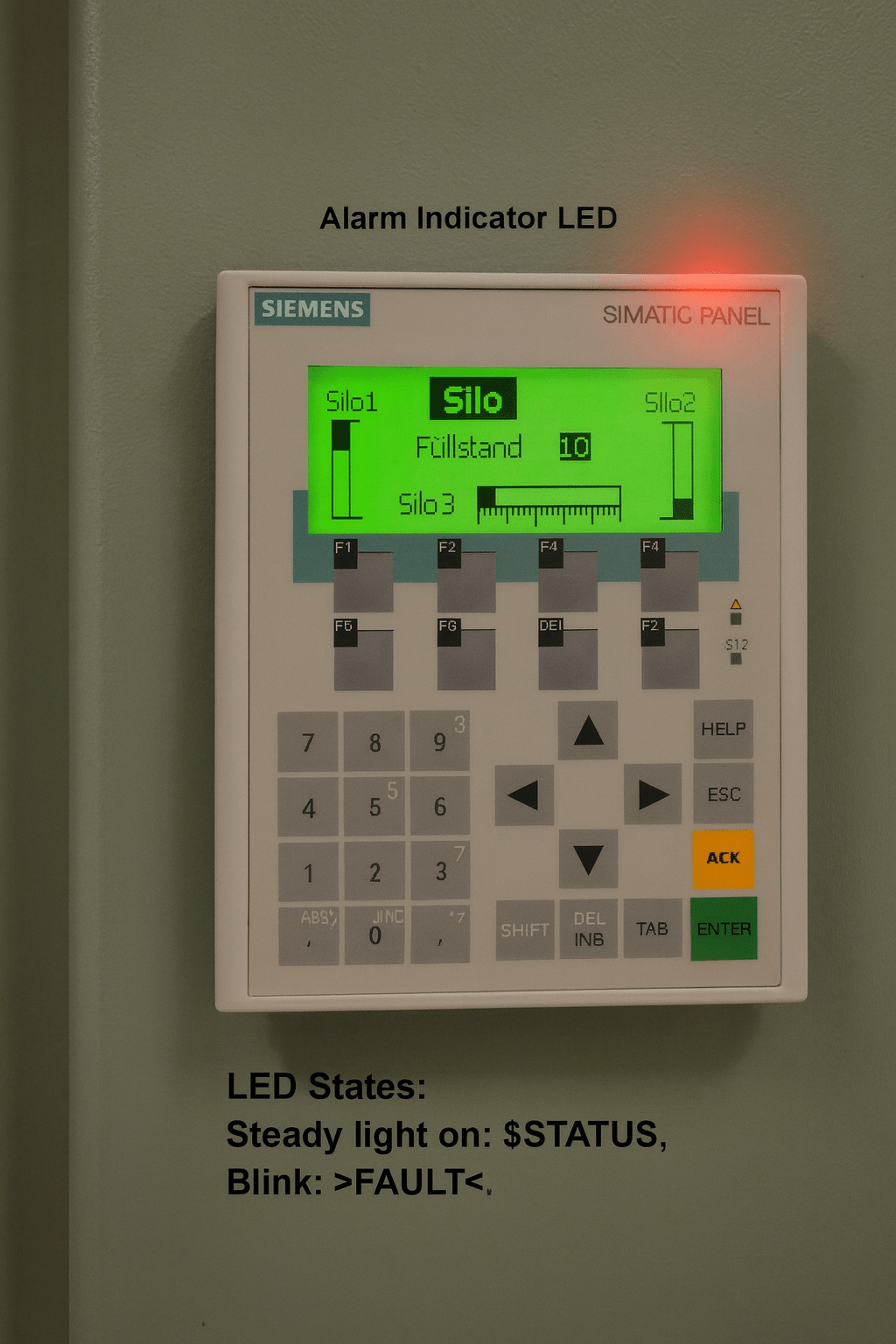
The OP77B features a red Alarm Indicator LED on the front panel (usually near the ACK key) that signals fault-class alarms.
| LED State | Meaning | Alarm Class |
|---|---|---|
| Off | No pending Fault-class alarms | — |
| Flashing | At least one unacknowledged "Fault" alarm | Fault (must acknowledge) |
| Steady On | Acknowledged "Fault" alarms present (no unacknowledged ones) | Fault |
Quick Fixes
- Press the ACK key (or configured function key) to acknowledge visible alarms.
- Open the Alarm View to check details (long-press INS or HELP for extended text if configured).
- If the LED keeps flashing, verify alarm configuration in WinCC flexible / ProTool and check for unacknowledged system events.
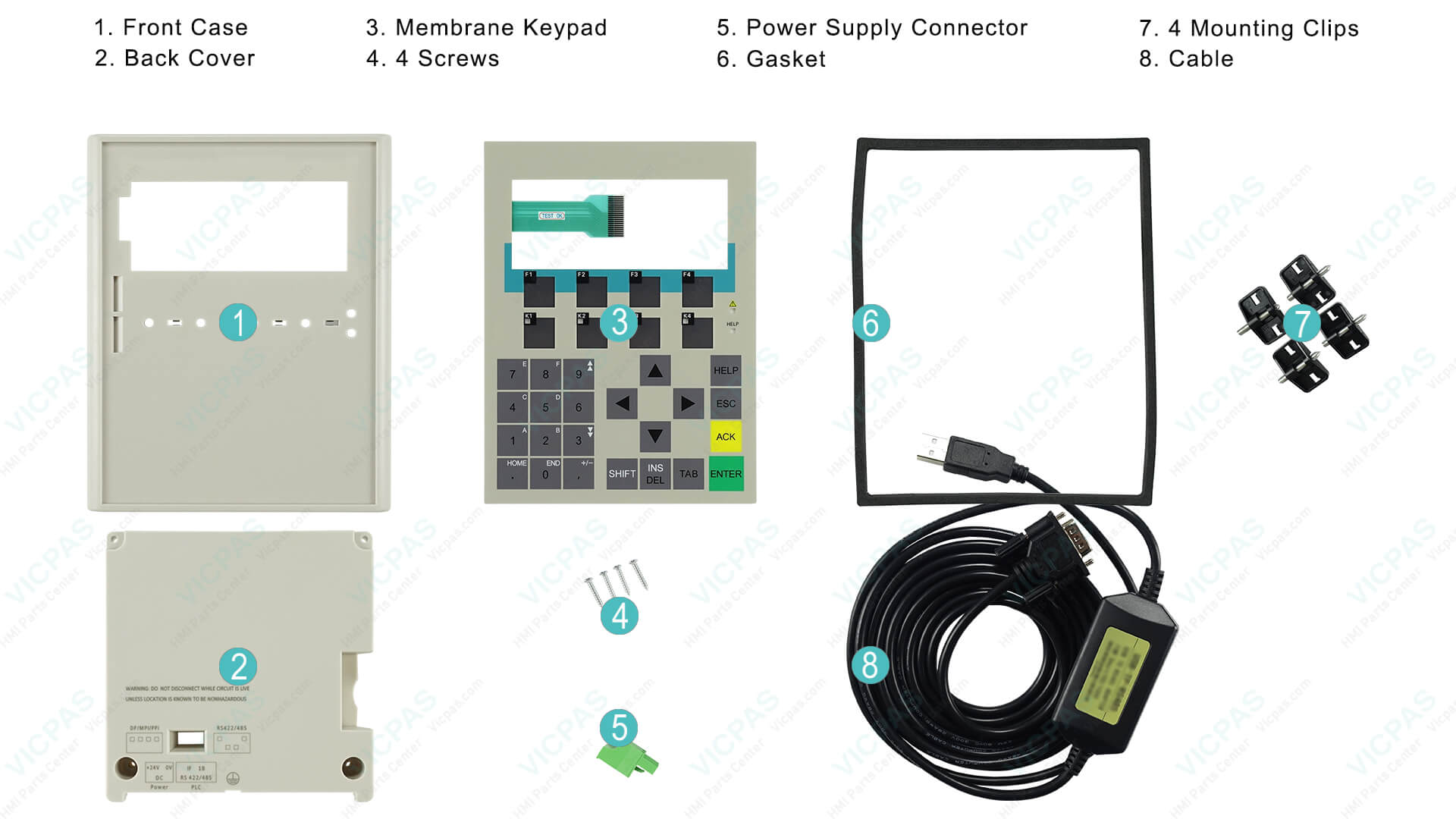
VICPAS Tip: Persistent LED issues often pair with worn keypads. Replace instantly with our 6AV6641-0CA01-0AX1 OP77B membrane keypad + case kit.
2. Communication Failures / PLC Connection Errors
Frequent system alarms: 140000-series (no data exchange) or 220000-series (driver interrupted). Symptoms include "Connection interrupted," frozen tags, or no updates.
Quick Fixes
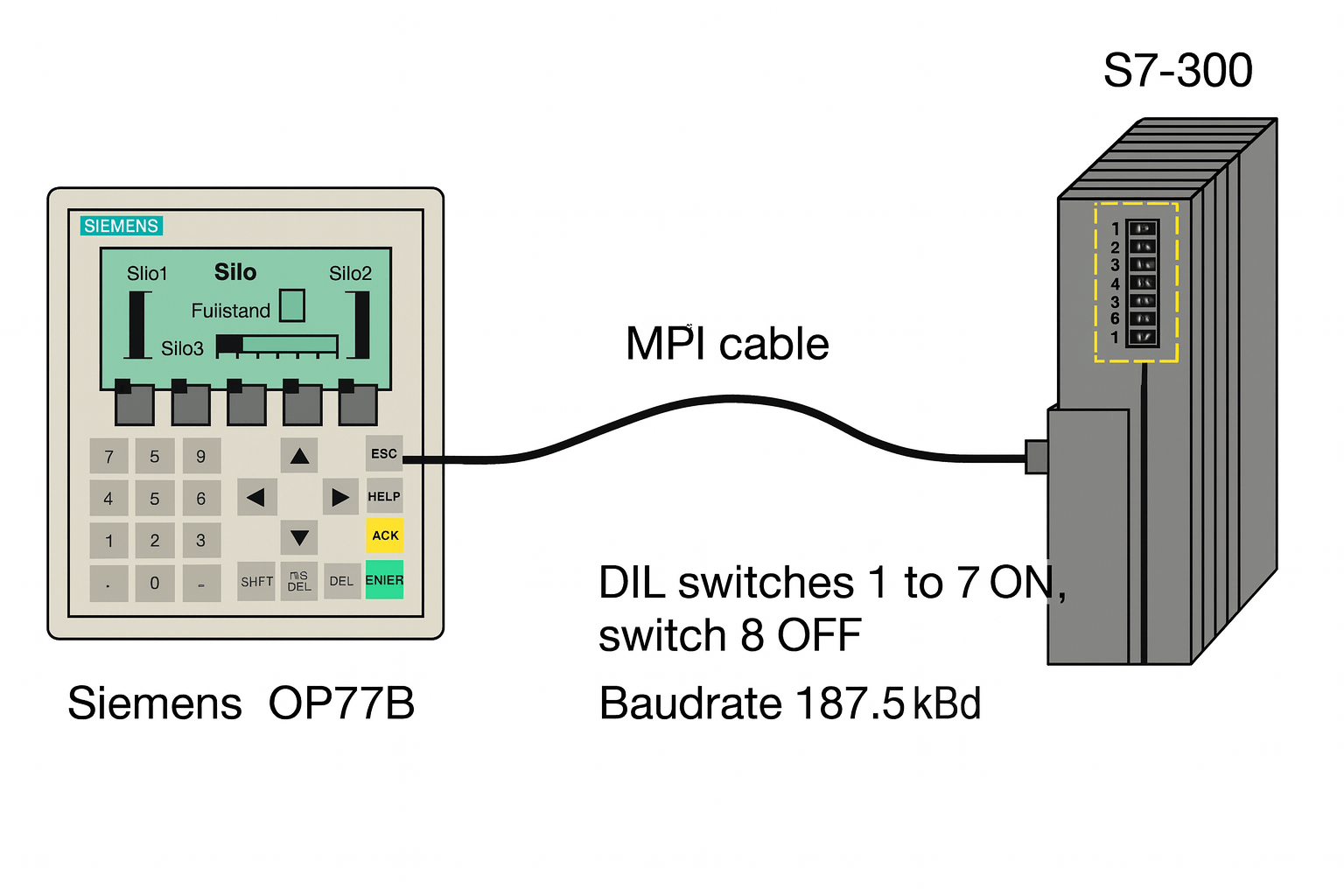
- Verify cabling: Use shielded MPI/Profibus cable with proper equipotential bonding (≥16 mm²).
- Check rear DIL switches on OP77B: Ensure correct position for SIMATIC S7 mode.
- Confirm baud rate (MPI: 187.5 kbps–12 Mbps) and unique station address.
- Power cycle both HMI and PLC, then re-download the project if needed.
- For S7-200 connections, double-check RS-485 interface and ProTool settings.
VICPAS Recommendation: Aging interfaces are a common culprit. We stock full OP77B replacement kits that plug in directly, saving hours of debugging.
3. Program Download / Reset Failures (Cannot Enter Transfer Mode or Factory Restore)
Common causes: Power glitches during transfer, faulty MMC card, or incompatible OS version.
Quick Fixes
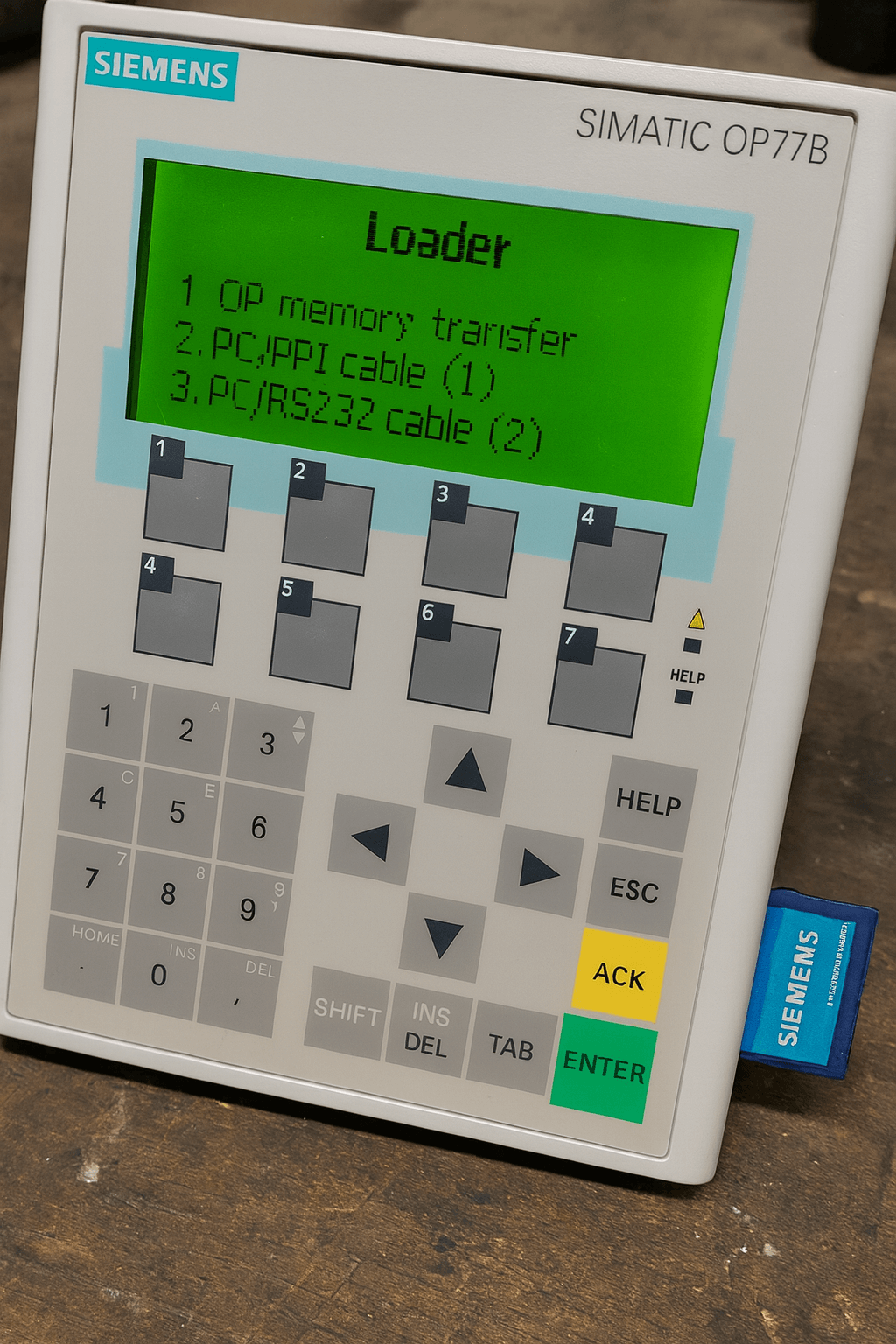
- Force reset: Power off for 30+ seconds, then power on to enter Loader menu.
- Factory restore: Use WinCC flexible / ProSave, select "Restore factory settings" during OS update (warning: deletes project and passwords).
- If MMC not detected, format it (backup first!).
- Re-download full project after reset.
VICPAS Note: Repeated failures usually indicate hardware wear. Replace with our OP77A/OP77B full shell + keypad sets for reliable recovery.
4. Parameter Lock / Forgotten Password Issues
After multiple wrong entries, the panel locks parameter changes.
Quick Fixes
- Re-download the complete project via WinCC flexible, disabling password lock during transfer.
- If password is completely lost, perform OS update with "Overwrite Loader" (erases all data — official Siemens method).
- After recovery, set a new strong password and enable auto-logout.
VICPAS Service: We help customers back up projects before resets to minimize data loss.
5. Display & Key Hardware Failures (Blank Screen, Unresponsive Keys)
Symptoms: No display, faded screen, keys not registering, or worn membrane.
Repair Steps
- Adjust contrast via menu → Contrast setting.
- Check power supply and connections.
- If hardware fault confirmed, replace the membrane keypad or front shell.
VICPAS Solutions – In-stock, tested replacements:
- 6AV6641-0CA01-0AX1 OP77B Membrane Keypad + Case
- 6AG1641-0CA01-4AX0 SIPLUS OP77B Keypad Kit
- 6AV6641-0CA01-0AX0 OP77B Membrane Keypad
- Full OP77A/B front + rear shell sets
Brand new • 12-month warranty • Same-day shipping
References & Official Sources
- Siemens Official OP7xx Manual (PDF) – Alarm LED behavior and system alarms
- Siemens OP73/OP77A/OP77B Operating Instructions (Chinese site reference)
- Siemens Industry Forum – OP7 → OP77B Conversion / Troubleshooting
- PLCTalk Forum – OP77B Alarm LED Discussion
- Siemens Forum – OP77B Cannot Reset / Factory Restore
VICPAS – Your Trusted Siemens OP77 Partner
20+ years • 80,000+ inventory • Expert support • Fast global shipping
Get Your Repair Quote Now →