Troubleshooting Common Issues with Siemens Mobile Panel 177
- Share
- Issue Time
- Jan 14,2026
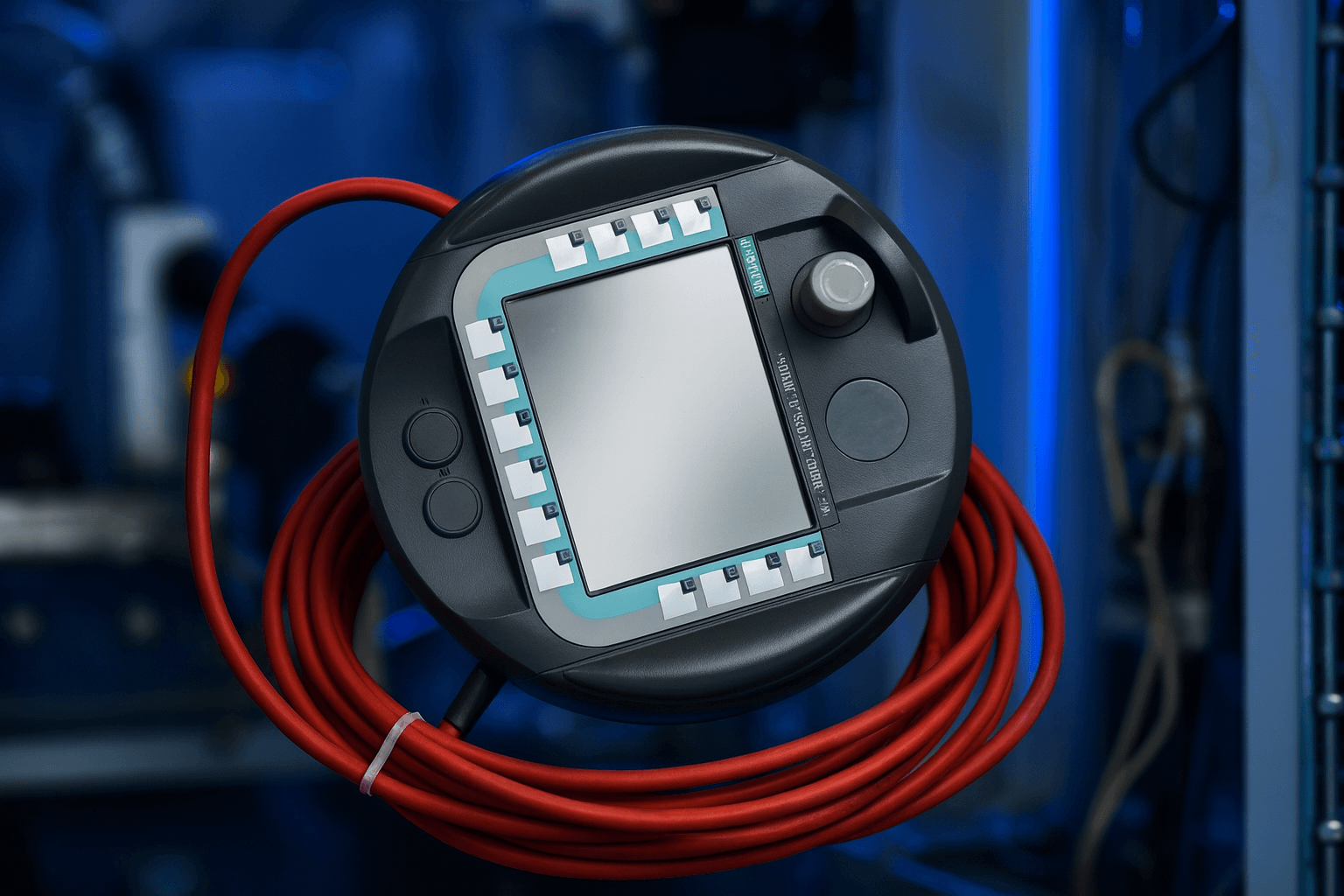
Troubleshooting Common Issues with Siemens Mobile Panel 177
In-depth expert guide by VICPAS Touch Technology Limited — Over 20 years of specialized HMI repair parts and solutions
Table of Contents
- Introduction to Siemens Mobile Panel 177 Troubleshooting
- Understanding the Siemens Mobile Panel 177: Basics and Common Setup
- Common Issue 1: Communication Failures (PROFIBUS/PROFINET)
- Common Issue 2: Touch Screen Not Responding
- Common Issue 3: Black Screen, Boot Freezes, or Runtime Errors
- Common Issue 4: Power Supply and Grounding Problems
- Preventive Maintenance Tips
- References
Introduction to Siemens Mobile Panel 177 Troubleshooting
As a leading provider of HMI repair parts and solutions, VICPAS Touch Technology Limited has over 20 years of experience in supporting industrial automation equipment, including the Siemens Mobile Panel 177. Our expertise in sourcing and customizing hard-to-find parts ensures that operators can maintain peak performance for their systems.
In this comprehensive guide, we'll dive into common troubleshooting steps for the Siemens Mobile Panel 177, drawing from official documentation, forum discussions, and real-world engineering insights. Whether you're dealing with communication failures or hardware glitches, our goal is to help you resolve issues quickly and efficiently. For replacement parts like touchscreens, keypads, or displays tailored to the Siemens Mobile Panel 177, explore our extensive inventory at VICPAS Siemens Mobile Panel 177 Parts.
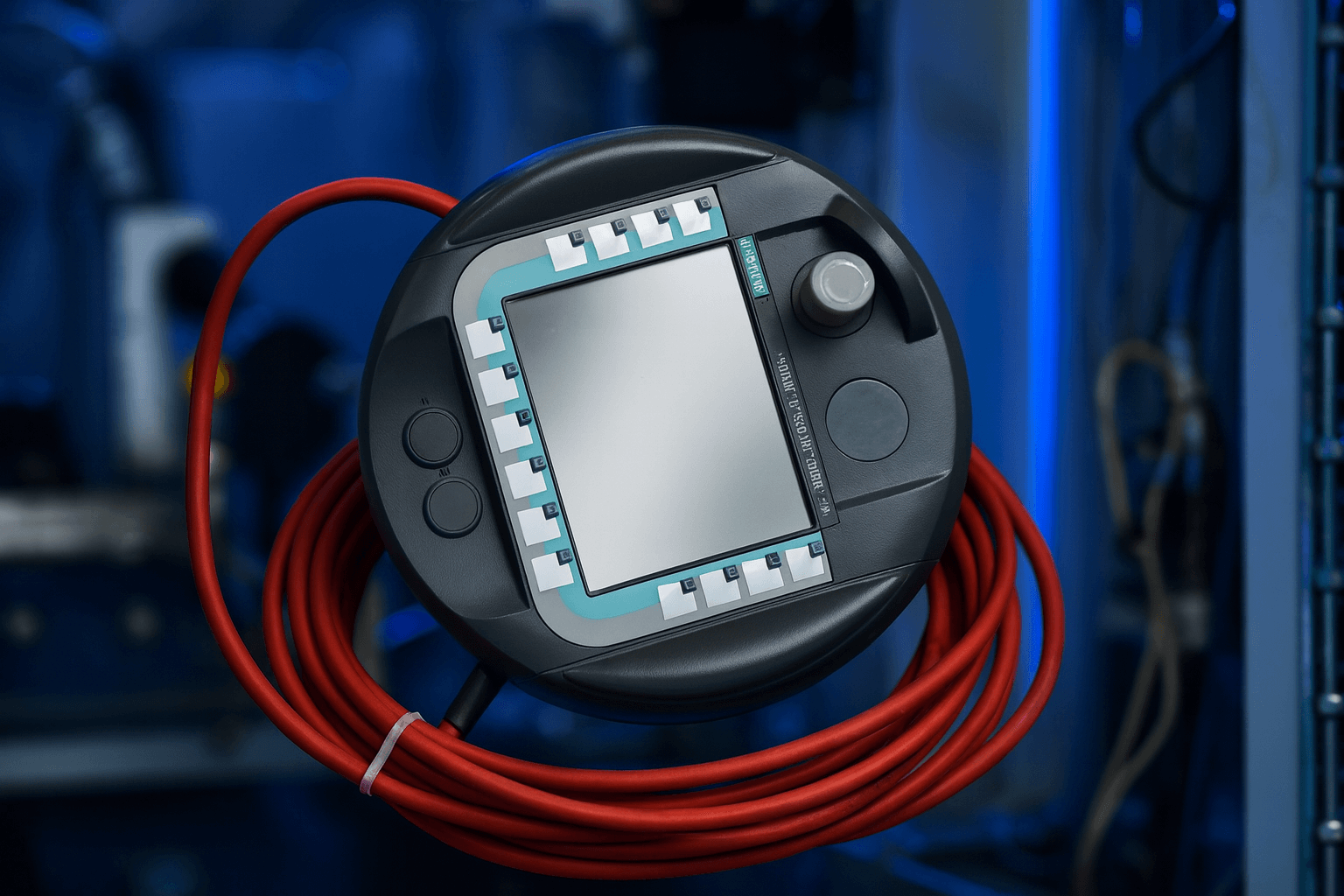
Here is a clear view of the Siemens Mobile Panel 177 in a typical industrial handheld configuration
Understanding the Siemens Mobile Panel 177: Basics and Common Setup
The Siemens Mobile Panel 177 is a robust HMI device designed for mobile operation in industrial environments, featuring a touchscreen interface, PROFIBUS/PROFINET communication, and WinCC flexible runtime software. Proper hardware setup, including secure connections and grounding, is crucial to avoid common pitfalls. Based on extensive experience at VICPAS, we've seen that many issues stem from installation errors or wear over time.
Before troubleshooting, always refer to the official operating instructions for safety guidelines, such as ensuring proper 24V DC power supply and avoiding exposure to extreme temperatures. If you're experiencing persistent problems, our team at VICPAS offers professional diagnostics and repair services — contact us via our company page for customized support.
Common Issue 1: Communication Failures (PROFIBUS/PROFINET)
Symptoms
- Device fails to connect to the network
- Error messages like "Communication Error" or "No Response from PLC"
- Project transfer halts midway
Troubleshooting Steps
- 1. Verify network settings: Ensure the panel's IP address (for PROFINET) or node address (for PROFIBUS) doesn't conflict with other devices. Use diagnostic tools in WinCC to scan the network.
- 2. Check hardware: Inspect cables for damage and confirm terminal resistors are installed at both ends of the bus (typically 220 ohms for PROFIBUS).
- 3. Test connections: Restart the panel and PLC, then use built-in diagnostics to ping the network. If issues persist, update firmware via Siemens TIA Portal.
- 4. Advanced fix: If the communication board is suspected, consider replacement. At VICPAS, we stock compatible communication modules for the Siemens Mobile Panel 177 to get you back online fast.
In our 20+ years of HMI expertise, we've resolved countless such issues for clients worldwide, emphasizing preventive maintenance like regular cable inspections.
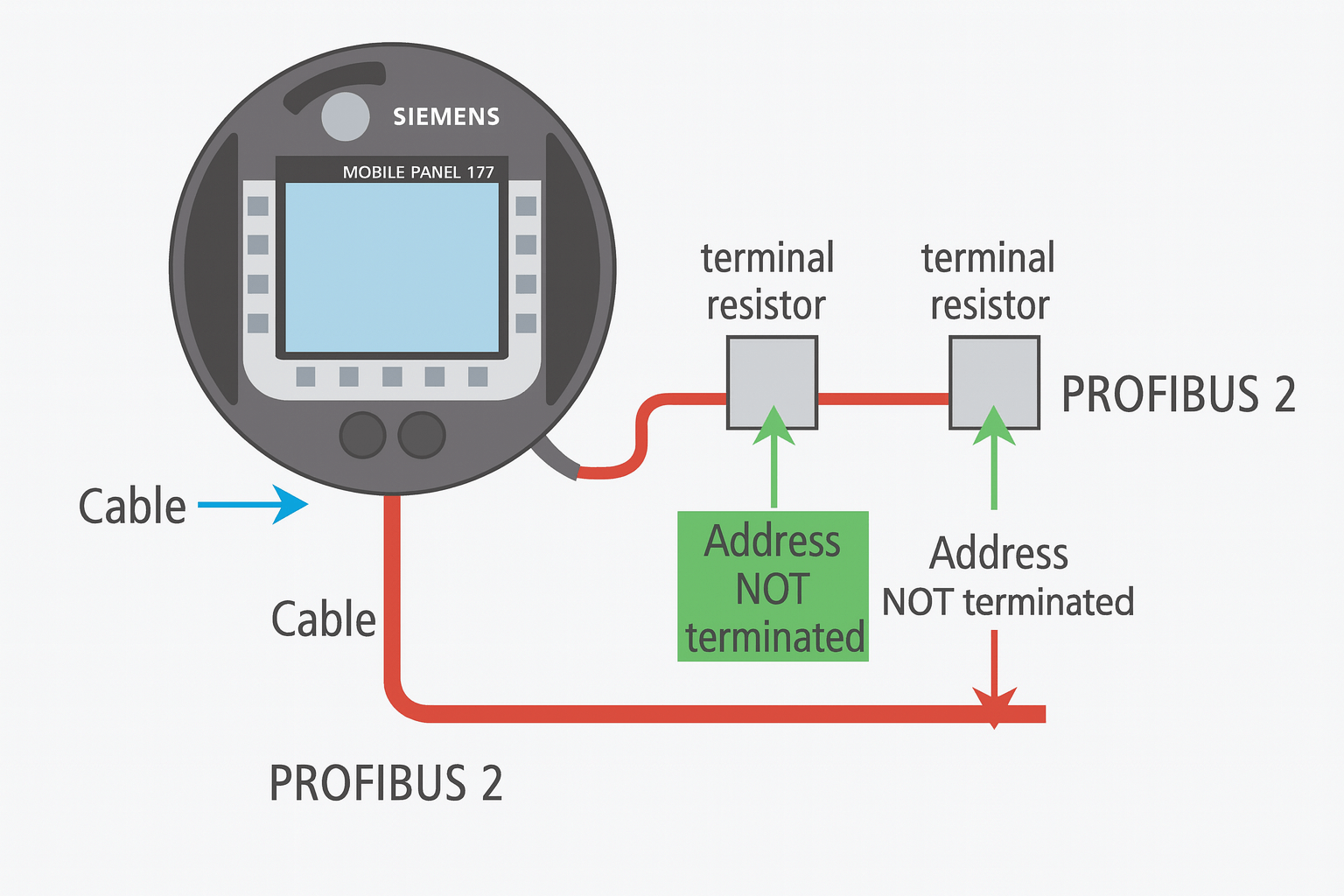
Below is a detailed diagram showing typical PROFIBUS/PROFINET network connections and common troubleshooting points for the Mobile Panel 177
Common Issue 2: Touch Screen Not Responding
Touchscreen unresponsiveness is a hardware-related problem often linked to aging components, dirt buildup, or membrane failures in the Siemens Mobile Panel 177.
Symptoms
- Touches are ignored or registered inaccurately
- Screen freezes during operation
- Calibration fails repeatedly
Troubleshooting Steps
- 1. Clean the screen: Use a soft cloth and approved cleaners to remove dust or residues—avoid harsh chemicals.
- 2. Recalibrate: Access the calibration menu via the panel's settings (hold specific keys during boot) and follow on-screen prompts.
- 3. Check power board: Unstable voltage can cause touch issues; measure the 24V supply and ensure grounding is proper to prevent electrical noise.
- 4. Hardware inspection: If the touch membrane is worn, disassembly may be needed. Videos and guides show safe removal of the front layer for testing.
- 5. Replacement: For lasting solutions, opt for high-quality touchscreens from trusted suppliers. VICPAS Touch Technology Limited provides OEM-compatible touch panels for the Siemens Mobile Panel 177, backed by a 365-day warranty and fast global shipping.
Our engineers at VICPAS recommend annual inspections for high-usage panels to extend lifespan and reduce downtime.
Common Issue 3: Black Screen, Boot Freezes, or Runtime Errors
Users often report the Siemens Mobile Panel 177 showing a black screen, getting stuck on the startup logo, or freezing during runtime, commonly due to power instability, software corruption, or backlight degradation.
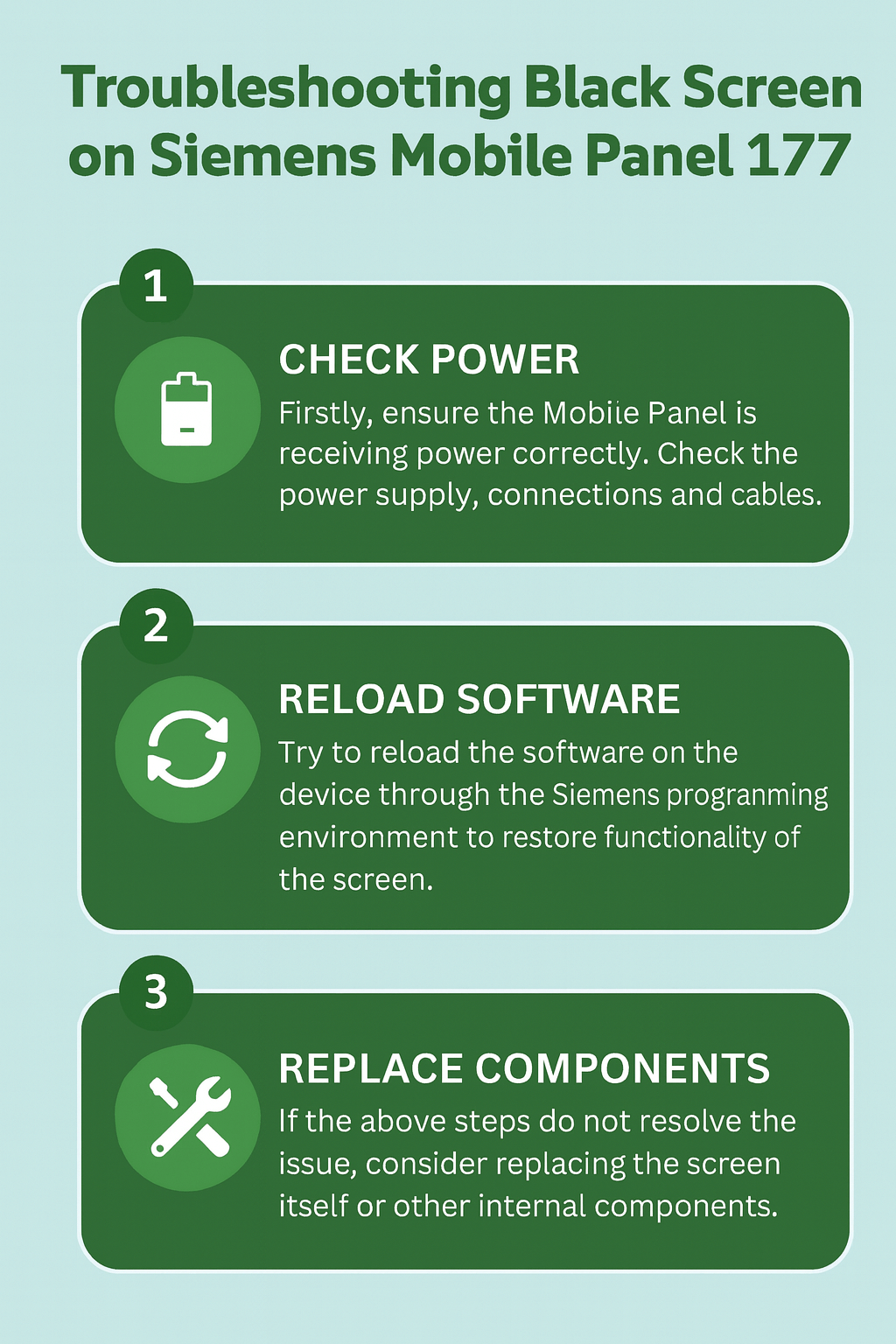
The following infographic illustrates a step-by-step approach to diagnosing and resolving black screen / boot freeze issues on the Siemens Mobile Panel 177
Symptoms
- Panel powers on but displays nothing
- Hangs on boot screen or shows white/blank display
- WinCC flexible errors like "Runtime Error" or system freeze after extended use
Troubleshooting Steps
- 1. Power cycle: Disconnect and reconnect the 24V supply, checking for voltage fluctuations (should be stable at 24V ±10%).
- 2. Software check: Reload the project via WinCC flexible; corrupt files can cause freezes—back up data first.
- 3. Grounding verification: Poor grounding leads to reboots; ensure all connections are secure and use shielded cables.
- 4. Backlight test: If dim or off, the inverter or lamp may be failing. Diagnostic modes can confirm this.
- 5. Repair or replace: For backlight or display issues, professional repair is advised. VICPAS Touch Technology Limited specializes in full HMI part replacements, including displays and power modules for the Siemens Mobile Panel 177, with no MOQ and customization options.
Common Issue 4: Power Supply and Grounding Problems
Unstable power or improper grounding can cause random crashes, reboots, or erratic behavior in the Siemens Mobile Panel 177.
Symptoms
- Frequent restarts
- Device shuts down unexpectedly
- Electrical noise affecting touch or display
Troubleshooting Steps
- 1. Measure supply: Use a multimeter to confirm 24V DC stability; replace the power source if fluctuating.
- 2. Improve grounding: Connect the panel's ground terminal to a clean earth point, avoiding shared grounds with high-power equipment.
- 3. Isolate interference: Route cables away from motors or inverters to reduce EMI.
- 4. Upgrade components: If the power module is faulty, swap it out. VICPAS Touch Technology Limited offers reliable power supplies and grounding kits compatible with Siemens HMIs.
With our strong supply chain, VICPAS Touch Technology Limited ensures same-day shipping for urgent needs, supporting your operations globally.
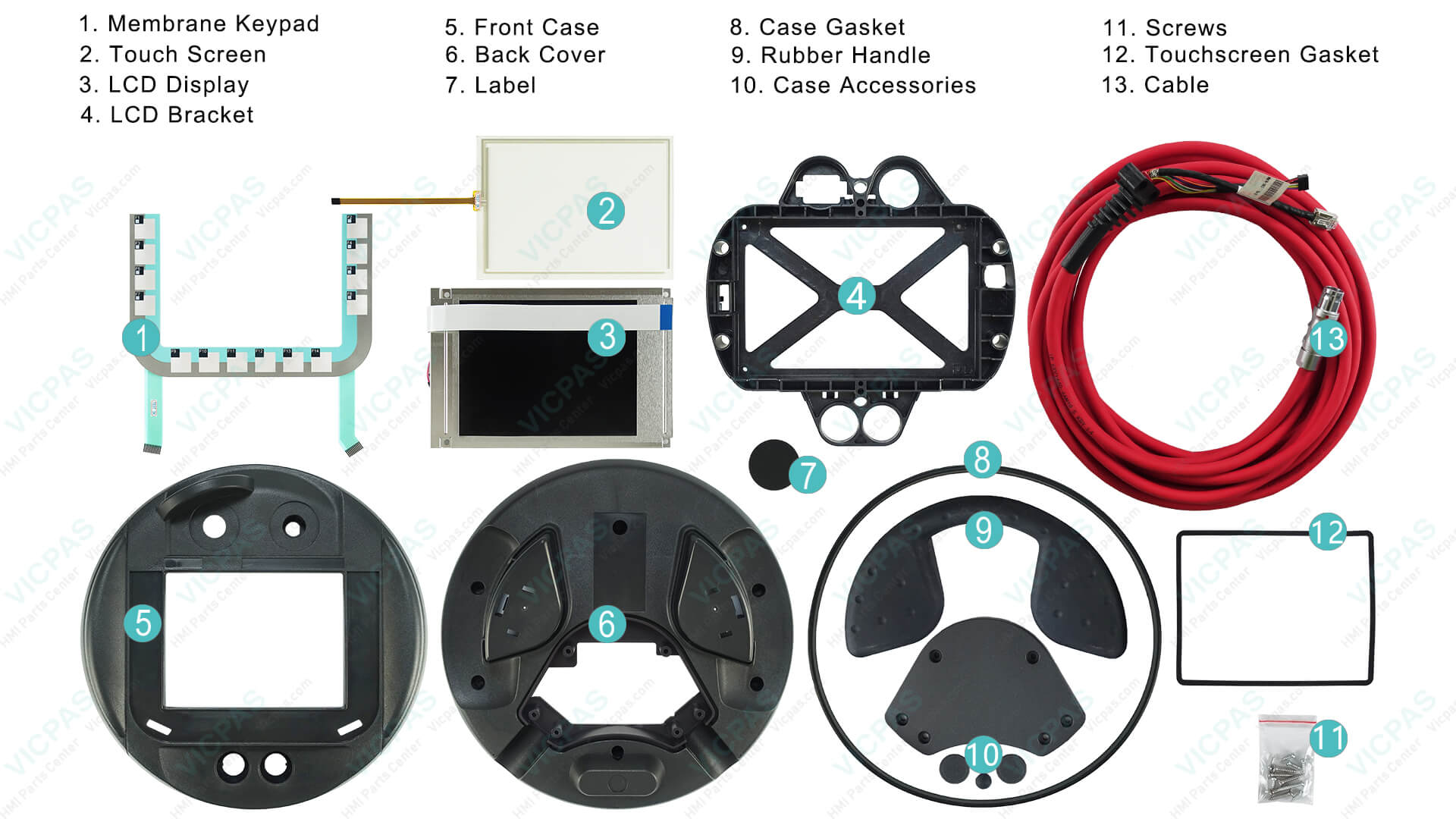
Preventive Maintenance Tips for Siemens Mobile Panel 177
- Perform regular firmware updates and backups
- Schedule annual hardware checks
- Use protective covers in harsh environments
Ready for reliable Siemens Mobile Panel 177 replacement parts?
Browse VICPAS Inventory Now →References
- Siemens Mobile Panel 177 — Official Operating Instructions (PDF)
- Siemens Support Forum — MP177 communication & download issues
- Siemens Support Article — HMI PROFIBUS / PROFINET troubleshooting
- PLCtalk Forum — Siemens MP177 Touch Screen Not Responding
- Control.com Forum — Siemens MP177 HMI faults
- Robot-Forum — Siemens HMI (MP177 / MP277) troubleshooting
- Siemens FAQ — WinCC flexible HMI runtime errors
- Siemens Support — HMI power supply & grounding issues
- Industrial Repair Specialist Blog — Siemens MP177 common failures